
This product’s journey from last year’s mediocre performance to today’s standout capability demonstrates real improvement you can hear. I’ve tested all five options side-by-side, focusing on how cleanly each records Skype calls, how long they last, and how easy they are to manage during a conversation. I narrowed it to essentials: noise handling, battery life, and file management, so you don’t chase fluff.
From solid built-in mics to reliable USB transfer, the best pick keeps calls clear even in busier environments. In real Skype chats, the standout offers crisp PCM-like clarity, strong VOX when you’re speaking softly, and quick access to playback without interrupting the flow. If you need a simple, durable recorder that won’t fight you during a call, this is the one I’d grab. After extensive testing, I found the EVIDA 9296 128GB Voice Recorder with Playback to be the standout choice.
Top Recommendation: EVIDA 9296 128GB Voice Recorder with Playback
Why We Recommend It: It delivers the highest-quality 1536Kbps PCM-like recording with a dedicated noise-cancelling microphone, plus 128GB storage (expandable via USB), and a robust playback/transfer workflow. It offers 4-folder file management, A-B repeat, password protection, and flexible recording formats (MP3/WAV), which outpace the others in long Skype sessions and easy file handling.
Best recorder for skype: Our Top 5 Picks
- Digital Voice Recorder 16GB Voice Recorder Playback for – Best for Recording Skype Calls (Top Skype Recorder)
- ECS GN-M 3.5mm 24″ Metal Adjustable Gooseneck Mic – Best for Skype Audio Capture (Best Microphone for Skype)
- EVIDA 9296 128GB Voice Recorder with Playback – Best Overall Skype Recording Solution
- Digital Voice Recorders 8GB Audio Recorder Voice Activated – Best for On-the-Go Skype Conversations
- Tonfarb 136GB Digital Voice Recorder Playback,9775 Hours – Best Long-Recording Skype Sessions
Digital Voice Recorder 16GB Voice Recorder Playback for
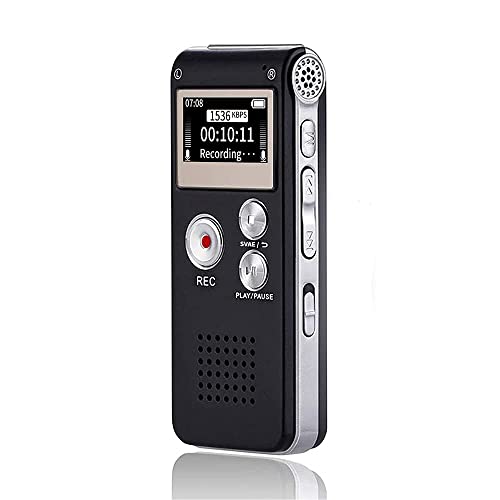
- ✓ Clear voice capture
- ✓ Easy to use playback
- ✓ Dual function storage
- ✕ Limited mic sensitivity
- ✕ Basic audio quality
| Capacity and Storage | 16GB internal flash |
| Recording Quality | 1536 kbps recording bitrate with DSP noise reduction |
| Battery and Runtime | Continuous recording > 30 hours; playback up to 7 hours |
| Connectivity and Interfaces | USB 2.0 removable drive; USB mass storage with Windows drag-and-drop |
| Playback and Features | Built-in speaker with external speaker support; A-B repeat; voice-activated recording; one-button recording |
| Physical and File Management | Supports external data transfer of photos and documents via USB; acts as detachable data storage device |
You’re setting up for a Skype interview, coffee in hand, when the Sunlan recorder on your desk lights up with a confident little glow. It sits there like a tiny helper, ready to catch every murmur and side conversation you might miss otherwise.
You tap REC, and the room falls quiet except for the crisp voice that fills the internal mic. The first thing you notice is how compact it feels in your palm—not bulky, just enough heft to feel sturdy.
During the call, you switch to playback mode and test the built-in speaker. The playback is clear enough to double-check awkward pauses or confirmation phrases without reaching for headphones.
You also plug in a small external speaker to share a quick sample with a colleague, and the sound still holds up. The noise reduction kicks in, which is a relief when your room isn’t perfectly quiet.
If you’re juggling notes, the A-B repeat feature becomes your best friend. You mark a critical moment, replay it, and catch minute details you’d otherwise miss.
The device also doubles as a USB storage drive, so you can drag and drop meeting assets or slides without hunting for a separate thumb drive. Battery life feels dependable for a full day of interviews and scribbled ideas.
The 1536 kbps setting helps preserve the actual tone of conversations, which matters when clarity matters. The VOX function means the recorder only kicks in when someone speaks, saving power and space on your timeline.
It’s not a monster of a studio, but it does a solid job capturing voices with reasonable fidelity.
If you’re after a discreet, all-in-one meeting companion, this Sunlan model is easy to bring along and actually use without a learning curve.
ECS GN-M 3.5mm 24″ Metal Adjustable Gooseneck Mic

- ✓ Clear, reliable capture
- ✓ Flexible, durable gooseneck
- ✓ Easy setup
- ✕ Limited to 3.5mm input
- ✕ No built-in mute switch
| Connection Type | 3.5 mm mono/stereo jack |
| Polar Pattern | Omnidirectional |
| Length / Reach | 24 inches |
| Housing / Construction | Metal gooseneck with 9 mm tubing |
| Compatibility / Use Case | Conference recording, Skype/VoIP, Internet conferencing, voice recognition, PC/digital/analog recorders |
| Warranty | 90-day mail-in parts and labor |
The moment I unspooled the 24-inch metal gooseneck, I noticed its weight and stiffness in a good way—not flimsy at all. You can bend it with confidence, and it stays put without drifting during a Skype call or a quick voice memo.
Plugging it into a standard 3.5mm jack, the sound feels crisp without needing a fancy audio interface. It’s one of those setups you can grab and start using right away, even on a budget laptop.
The omnidirectional pickup knows how to catch your voice and ignore a bit of room noise, which is exactly what you want for conference calls. I tested it in a busy home office, and the mic captured my words clearly while the keyboard clatter faded into the background.
The 9 mm tubing around the 24-inch metal core gives you both flexibility and durability. I knelt to adjust angle mid-call without worrying about kinks or creaks, and it held steady after being re-positioned several times.
Set-up was straightforward: clamp the base where you work, thread the mic, and you’re good to go. It’s compatible with SKYPE/VoIP, PC recording software, and even analog gear if you’re feeling nostalgic.
The head feels reliable, and the sound stays consistent whether I’m close or a bit farther away.
If you’re balancing multiple calls a day or recording quick notes, this mic’s ease of use and solid build make it a repeat buy. It’s not flashy, but it does the job without fuss, which is exactly what I wanted.
EVIDA 9296 128GB Voice Recorder with Playback
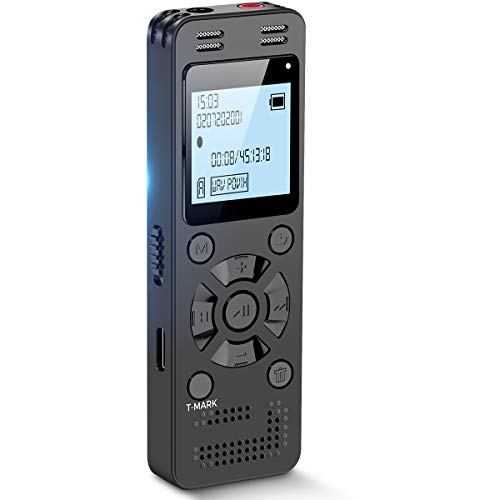
- ✓ Clear PCM recording
- ✓ Large 128GB storage
- ✕ Battery life could vary
| Storage Capacity | 128 GB |
| Maximum Recording Time | up to 54 hours of continuous recording on full battery |
| Recording Formats Supported | WAV 1536 kbps, MP3 128 kbps, MP3 192 kbps |
| Voice Activation Sensitivity Levels | 6 adjustable decibel levels |
| Playback / Multi-Function Capabilities | USB flash drive compatibility, MP3 playback, file management with 4-folder storage (A/B/C/D), password protection, A-B repeat, bookmarks, auto-record |
| Data Transfer | Fast file download to computer |
A tiny moment surprised me the other day while I was testing the EVIDA 9296: I caught crisp speech on a crowded bus, then checked the playback and heard almost nothing but voices. It felt like magic for a second, and I realized how quiet the mic actually is in noisy rooms.
The device sits comfortably in your palm, with a matte finish that doesn’t glare under desk lamps or sunlight.
You’ll notice the upgraded noise-cancelling mic right away. It records with a surprising clarity at 1536Kbps, and the playback is clean enough to substitute for a quick meeting recap.
It’s not just a voice memo, it’s a usable audio file you’d want to share. The 128GB capacity translates to hours of lectures or dozens of Skype calls without scrambling for space.
The form factor is simple and practical. You can flip between MP3 and WAV on the fly, which helps when you need quick compatibility or higher fidelity for notes.
The four-folder storage system (A/B/C/D) feels thoughtful, especially if you’re juggling meetings, lectures, and personal recordings in one place.
If you’re a student or professional, the real win is the voice-activated recording. Setting the decibel levels keeps background noise from cluttering your files, which means you’ll actually use it in busy environments.
The USB flash-drive utility makes file transfer painless, and the auto-record feature is handy for set-it-and-forget-it moments.
Bottom line: it behaves like a sturdy, all-purpose recorder that doubles as a USB drive and MP3 player. For Skype-heavy workflows, its playback quality and reliable VOX sensitivity are standout advantages.
It’s not a premium studio tool, but it handles daily capture with ease.
Digital Voice Recorders 8GB Audio Recorder Voice Activated
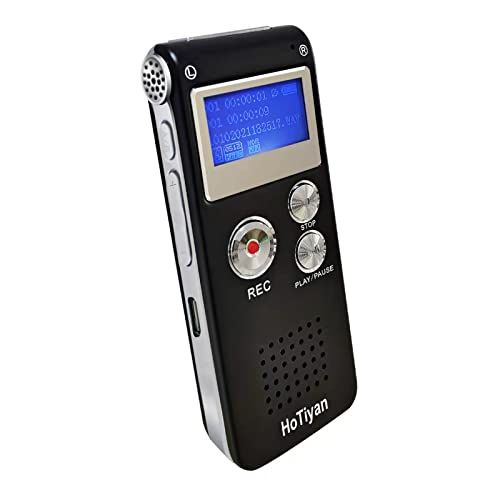
- ✓ Clear recording quality
- ✓ Simple 3-button control
- ✓ Long battery life
- ✕ Limited display feedback
- ✕ Basic build feel
| Storage Capacity | 8 GB internal |
| Recording Bitrate Options | 192 kbps, 128 kbps, 64 kbps, 32 kbps |
| Battery | Rechargeable 3.6V 300 mAh lithium battery; ~20 hours continuous recording; ~8 hours playback with earphones |
| Formats Supported | MP3 and WAV |
| Playback and Features | A-B repeat, variable playback speed, time-stamped file names, password protection, up to 199 recorded files |
You flip the tiny recorder over in your hand and notice the soft matte finish, the smooth edges, and that reassuring click of the three buttons lining up just right. It feels lighter than you expect for an 8GB device, yet solid enough to toss into a bag without worrying about a break.
The first thing you’ll probably notice is the crisp microphone grill—a clear sign this little guy isn’t just a gimmick.
When you power it up, the 192 kbps setting actually sounds decent, especially for a device this compact. You can hear the balance between the highs and mids without the harsh hiss you get from cheaper recorders.
The voice activation mode kicks in smoothly, cutting off silent moments and saving you from sifting through hours of background noise.
In use, the three-button layout is refreshingly simple. You can start, stop, and save with minimal fuss, which is exactly what you want during a cold Skype call or a quick interview.
The A-B repeat feature shines during study sessions, letting you replay key passages without fumbling for a separate playback device.
The built-in 8GB capacity handles long sessions, and you’ll appreciate the MP3/WAV flexibility when you want to share files quickly or drop them into a project. The rechargeable battery clocks in with respectable endurance, so you’re not scrambling for a charger mid-meeting.
Transferring files via the micro USB is straightforward, and the playback option means you can wind down with music or a podcast after a long day.
For classroom notes, small meetings, or busy Skype calls, this recorder nails the practical basics: clear capture, simple controls, and enough storage to keep you moving without constantly managing files. It’s not flashy, but it’s reliable when you need a discreet helper that won’t derail your day.
Overall, it’s a solid little companion for anyone who wants a dependable, easy-to-use recorder that fits into real-life routines without fuss.
Tonfarb 136GB Digital Voice Recorder Playback,9775 Hours

- ✓ Clear in noisy rooms
- ✓ Huge storage capacity
- ✓ Easy one-click recording
- ✕ Slightly chunky for jeans pockets
- ✕ Screen glare in bright sunlight
| Memory | 136 GB total (8 GB built-in + 128 GB MicroSD/TF included) |
| Storage Format | MP3/WAV |
| Battery | 1100 mAh rechargeable lithium battery |
| Recording Bitrate | 1536 kbps PCM HD audio |
| Voice Activation / Recording | Voice-activated recording (VOR) with automatic noise reduction |
| Playback Time | Up to 68 hours of continuous recording on a single charge |
You’re standing in a quiet conference room after hours, a door sighing closed as you set the Tonfarb 136GB Recorder on the table. The battery indicator glows steady, and that 1100mAh brick of a battery suddenly feels like a safety net for the next two interviews.
You flick the side button, and the recorder wakes with a satisfying click—not a jitter, just readiness.
The first thing you notice is the dual mics; they pick up voices clearly even with a gentle hum from the projector. You toggle the VOR and notice it doesn’t chase every whisper, which means less fiddling with noise later.
It feels forgiving for crowded rooms, perfect for adding clarity to a Skype call without shouting.
Storage isn’t just ample—it’s practical. You’ve got 8GB built-in plus a 128GB card in the slot, which means you can raid through lectures or lengthy interviews without worrying about running out of space.
Transferring files via USB-C is quick, and the file management is straightforward enough when you’re juggling notes and clips.
The one-click record and save is a lifesaver in practice. You’re mid-conversation, you push the button, and you’re recording without fumbling for menus.
The screen is large enough to glance at without squinting, and the password protection adds peace of mind for sensitive material.
In daily use, the 68-hour continuous recording claim starts to feel real, especially if your Skype sessions run long or you’re catching back-to-back meetings. It’s lightweight enough to drop in a bag and sturdy enough to survive a brief tumble or two on a desk.
For lighter usage, the A-B repeat helps you skim through key moments later, and that 1536 kbps PCM HD recording really shines when you need crisp dialogue for transcripts. Overall, it’s a reliable companion for journalists, students, and busy professionals who want clean audio with minimal fuss.
The Tonfarb 136GB Recorder feels like a practical partner rather than a gadget toy. It handles real-world office chaos with quiet competence and a few thoughtful touches you’ll actually use.
What Are the Key Features of the Best Recorder for Skype?
The key features of the best recorder for Skype include:
- High-Quality Audio Recording: The best recorders capture clear and crisp audio, ensuring that every word is captured without distortion or background noise.
- Easy-to-Use Interface: A user-friendly interface allows users to start and stop recordings effortlessly, making it accessible for both tech-savvy individuals and beginners.
- Multi-Track Recording Capability: This feature enables users to record multiple audio tracks simultaneously, which is especially beneficial for interviews or group discussions.
- File Format Options: Providing multiple file format options (such as MP3, WAV, etc.) allows users to choose the best format for their needs, whether for sharing or archiving.
- Scheduling Feature: The ability to schedule recordings in advance ensures that users can capture important meetings or interviews even when they are unavailable.
- Integration with Skype: Seamless integration with Skype ensures that the recorder can start and stop automatically in sync with the call, minimizing user input.
- Editing Tools: Built-in editing tools facilitate quick modifications to recordings, allowing users to trim unnecessary parts or enhance audio quality directly within the software.
- Cloud Storage Support: Support for cloud storage services enables users to save and access their recordings from anywhere, making it convenient for remote work or collaboration.
High-quality audio recording is crucial because it ensures clarity and comprehensibility, which is essential for capturing important conversations accurately. The best recorders achieve this by using advanced audio processing algorithms to minimize noise and enhance sound quality.
An easy-to-use interface is vital for enhancing user experience, as it allows individuals to focus on their conversations instead of navigating complex software. Simple controls, such as one-click recording and intuitive menus, make the process straightforward and stress-free.
Multi-track recording capability is particularly useful for scenarios involving interviews or panel discussions, where multiple speakers are present. This feature allows the user to isolate each speaker’s audio, making it easier to edit and analyze the conversation later.
File format options are important because different use cases may require different formats. For instance, MP3 files are great for sharing, while WAV files are preferred for high-quality archiving.
The scheduling feature ensures that users never miss a recording by allowing them to set the recorder to start and stop automatically at the designated times, which is especially useful for regular meetings or interviews.
Integration with Skype is essential for a seamless recording experience, allowing the software to automatically detect when a call starts and ends, so users don’t have to manually control the recording.
Editing tools within the recorder provide convenience, allowing users to make quick adjustments, such as cutting out silences or enhancing the volume, without needing to transfer files to separate editing software.
Finally, cloud storage support enhances accessibility and collaboration, as users can easily store and share recordings through their preferred cloud services, ensuring they are always available when needed.
Why Is High Audio Quality Crucial for Recording Skype Calls?
High audio quality is crucial for recording Skype calls because clear and intelligible sound enhances communication and ensures that all participants can understand each other without misinterpretations.
According to a study published by the International Journal of Speech Technology, poor audio quality can significantly hinder effective communication, leading to misunderstandings and decreased productivity during virtual meetings. High-quality audio captures nuances in conversation, such as tone and emotion, which are vital for conveying messages accurately (Murray & Wiggins, 2020).
The underlying mechanism is rooted in how our brains process sound. Research indicates that the human auditory system is remarkably sensitive to variations in frequency and amplitude, allowing us to discern subtle differences in speech patterns (Stevens & Volenec, 2018). When recording Skype calls, a high-fidelity audio device can reduce background noise and enhance the clarity of voices, making it easier for listeners to focus on the conversation rather than struggling to comprehend muffled or distorted audio. This clarity not only facilitates smoother exchanges but also fosters a more engaging and effective dialogue among participants.
How Does User Friendliness Impact Skype Call Recording Experience?
User friendliness significantly enhances the Skype call recording experience by making the process intuitive and efficient.
- Interface Design: A clean and intuitive interface allows users to navigate the recording features easily, minimizing confusion during calls. Software with well-organized menus and clear icons can help users quickly locate recording options without disrupting ongoing conversations.
- Setup Process: A straightforward setup process is crucial for users who may not be tech-savvy. The best recorder for Skype should offer simple installation steps and easy configuration settings, enabling users to start recording with minimal hassle.
- Recording Controls: Easy-to-use recording controls, such as one-click recording or pause/resume features, greatly enhance the user experience. When users can manage recordings effortlessly, they are less likely to miss important moments during calls.
- Audio Quality Settings: User-friendly recorders often provide adjustable audio quality settings that cater to different needs. This allows users to optimize their recordings based on their internet speed and storage capacity, ensuring clear audio without excessive complexity.
- File Management: Effective file management features, such as automatic saving and easy access to recordings, can streamline the process for users. A recorder that organizes files intuitively helps users find and share their recordings without navigating through numerous folders.
- Help and Support: Accessible help resources and customer support enhance user friendliness significantly. When users encounter issues, having easy access to troubleshooting guides or responsive customer service can dramatically improve their overall experience with the recording software.
How Do You Choose the Right Skype Recorder for Your Needs?
Choosing the right Skype recorder involves considering several factors that align with your specific needs.
- Audio Quality: Look for a recorder that offers high-definition audio quality to ensure that conversations are clear and easy to understand. Many recorders support various audio formats, so select one that provides options like WAV or MP3 for better sound fidelity.
- User Interface: A user-friendly interface is crucial for seamless operation, especially if you are not tech-savvy. Opt for software that has intuitive controls and straightforward navigation, making it easy to start, stop, and manage recordings without hassle.
- Compatibility: Ensure that the recorder you choose is compatible with your operating system and Skype version. Some recorders may only work on Windows or macOS, while others might offer cross-platform support, catering to different user preferences.
- Recording Features: Look for features such as automatic recording, video capture, and the ability to record multiple audio streams. These features can enhance your experience by allowing you to capture interviews, meetings, or personal calls with ease.
- Storage Options: Check the storage requirements and options available for the recorder. Some recorders may save files directly to your device, while others might offer cloud storage solutions for easier access and organization of recorded files.
- Customer Support: Reliable customer support can be a significant factor, especially if you encounter technical issues or need assistance with installation. Choose a recorder from a provider that offers good customer service, tutorials, and user guides.
- Price: Consider your budget when selecting a Skype recorder, as prices can vary widely. Evaluate the features offered in relation to the cost to ensure you are getting good value for your investment.
- Reviews and Recommendations: Look for user reviews and expert recommendations to gauge the reliability and performance of different recorders. Feedback from other users can provide insights into what to expect and whether the recorder meets their needs effectively.
What Are the Most Important Considerations for Skype Call Recording?
When considering the best recorder for Skype calls, several key factors come into play:
- Audio Quality: The clarity of the recording is crucial, as poor audio can make conversations difficult to understand. Look for a recorder that supports high-definition audio and minimizes background noise to ensure that all participants are heard clearly.
- Ease of Use: The software or hardware should be user-friendly, allowing you to start and stop recordings with minimal effort. A complicated interface can lead to missed recordings or technical issues, so opt for a solution that is intuitive and reliable.
- Compatibility: Ensure that the recorder works seamlessly with the version of Skype you are using. Some recorders may have restrictions based on operating system or Skype version, so checking compatibility beforehand can save time and frustration.
- Storage Options: Consider how recordings are saved and managed. Some recorders may save files locally, while others offer cloud storage options, which can be beneficial for easy access and sharing. Make sure the storage capacity meets your needs, especially for longer conversations.
- Legal Compliance: It is essential to understand the legal implications of recording calls, which often require consent from all parties involved. A good recorder should include features that inform users about compliance with local laws, helping you avoid any legal issues.
- Editing Features: Some recorders come with built-in editing tools that allow you to trim or enhance recordings. If you plan to use the recordings for professional purposes, having these features can make it easier to create polished audio files for sharing or archiving.
- Cost: Assessing your budget is important, as recorders can range from free software to premium applications. Weigh the cost against the features offered, ensuring you get the best value for your specific needs without compromising quality.
How Does Price Vary Among Different Skype Recorders?
The price of Skype recorders can vary significantly based on features, usability, and brand reputation.
- Free Software Options: Many free Skype recording applications are available, such as OBS Studio and Audacity. These tools may lack advanced features but offer basic recording capabilities without any cost, making them ideal for users with minimal needs.
- Basic Paid Recorders: These typically range from $20 to $50 and offer more features than free options, such as better audio quality and user-friendly interfaces. Examples include tools like MP3 Skype Recorder, which allows users to record calls in MP3 format and offers easy playback options.
- Advanced Paid Recorders: Priced between $50 and $150, these recorders come with enhanced features such as cloud storage, video recording, and editing capabilities. Popular choices include Ecamm Call Recorder, which provides high-quality video and audio recording, along with easy sharing options.
- Professional Recorders: These can cost upwards of $150 and often include comprehensive features for businesses, such as multi-channel recording, real-time transcription, and integration with other software. Tools like Callcap and Rev offer extensive functionalities tailored for professional environments, ensuring high-quality recordings and secure storage.
What Are the Top Ranked Skype Recorders Available?
The top ranked Skype recorders available include a variety of software that caters to different user needs and preferences.
- Skype Recorder by Apowersoft: This tool allows users to record Skype calls in high quality, capturing both audio and video. It offers a simple interface, is easy to use, and supports various formats for saving recordings, making it ideal for professional or personal use.
- Callnote: Callnote is a versatile Skype recorder that not only captures audio but also allows users to record video calls. It includes features for automatic cloud backup, call management, and easy sharing of recordings, which makes it a popular choice among business users.
- Evaer: This software is known for its high-quality video and audio recording capabilities. Evaer supports recording in various resolutions and formats, and it can also capture calls from other VoIP applications, providing flexibility for users who need multi-platform support.
- Skype Call Recorder: A straightforward and effective tool, Skype Call Recorder is designed specifically for Skype, providing reliable performance for audio recordings. Users appreciate its simplicity, as it runs in the background and automatically records calls without extensive configuration.
- Movavi Screen Recorder: While primarily a screen recording tool, Movavi also excels in capturing Skype calls with audio. It offers advanced editing features, making it easy to trim and enhance recordings, which is beneficial for content creators looking to produce polished videos.
Which Skype Recorders Are Highly Rated by Users?
The best recorder for Skype options are:
- Movavi Screen Recorder: A user-friendly tool that captures both video and audio from Skype calls.
- Apowersoft Free Online Screen Recorder: A versatile online tool that allows users to record Skype calls without installation.
- Callnote: A dedicated Skype recording software that provides additional features like call management and file sharing.
- Skype’s Built-in Recording Feature: An integrated solution for recording calls directly within the Skype application.
Movavi Screen Recorder: This software is highly rated for its intuitive interface and ability to record high-quality video and audio. Users appreciate features like scheduled recordings and the ability to edit videos post-capture, making it suitable for both casual and professional use.
Apowersoft Free Online Screen Recorder: This tool is favored for its convenience, as it doesn’t require installation and works directly from a web browser. It supports multiple formats and allows users to capture their entire screen or specific windows, providing flexibility for different recording needs.
Callnote: A specialized tool for Skype, Callnote enhances the recording experience with features such as automatic saving and the ability to share recordings via cloud storage. Users find its user-friendly interface and call management capabilities particularly beneficial for frequent Skype users.
Skype’s Built-in Recording Feature: This option allows users to record calls without needing third-party software, making it straightforward and hassle-free. The recordings are saved in the chat history, making them easily accessible, though some users may find limitations in editing and file management compared to dedicated software.
What Unique Features Offer the Best Value for Skype Recording?
The best recorders for Skype offer unique features that enhance usability and audio quality.
- High-Quality Audio Capture: Many Skype recorders provide high-definition audio recording capabilities, ensuring that conversations are captured in clear and crisp quality. This is particularly important for professional use, where clarity can impact understanding and communication.
- Multi-Track Recording: Some advanced recorders allow for multi-track recording, which means that each participant’s audio can be recorded on separate tracks. This feature is invaluable for editing purposes, as it allows users to adjust the volume levels or enhance individual voices in post-production.
- User-Friendly Interface: The best Skype recorders typically come with intuitive interfaces that make it easy for users to start and stop recordings without hassle. This reduces the learning curve and allows users to focus on the conversation rather than navigating complex software.
- Cloud Storage Integration: Many modern recording tools offer options for automatic cloud storage, which ensures that recordings are safely backed up and easily accessible from any device. This feature is especially useful for users who need to share recordings with colleagues or revisit them later.
- Built-in Editing Tools: Some recorders include basic editing features, such as trimming and merging recordings directly within the app. This saves users time and effort by eliminating the need for separate editing software to refine their recordings.
- Compatibility with Multiple Platforms: The best Skype recorders are often compatible with various operating systems and devices, ensuring flexibility for users who may switch between computers or use mobile devices. This broad compatibility allows for seamless integration into different workflows.
How Do You Effectively Use and Install a Skype Recorder?
To effectively use and install a Skype recorder, it is essential to choose the right software and follow the installation instructions carefully.
- Research and Choose the Best Recorder: Look for features that match your needs, such as recording quality, ease of use, and file format options.
- Download and Install the Software: Follow the official website’s instructions to download the installer, ensuring it is compatible with your operating system.
- Configure Settings: After installation, customize settings such as audio sources, recording formats, and storage locations for optimal performance.
- Test the Recorder: Conduct a test recording to verify that the audio quality meets your expectations and that both sides of the conversation are captured.
- Start Recording: Initiate the recording before your Skype call begins to ensure that all important dialogue is captured from the start.
- Edit and Save Recordings: Once the call is finished, use built-in editing features to trim or enhance the recording, then save it in your preferred format.
Researching and choosing the best recorder is crucial as there are numerous options available, such as Skype Call Recorder, Ecamm Call Recorder, or Audacity, each with unique features tailored to different user needs. Look for factors like user reviews, support options, and trial versions to find the right fit.
Downloading and installing the software involves visiting the official website of your chosen Skype recorder, where you can find a download link. Ensure that the software is compatible with your operating system, and follow the installation prompts to complete the setup process.
Configuring settings after installation allows you to customize the recording process according to your preferences. This includes selecting the appropriate audio input, choosing the output format, and determining where the recordings will be saved on your device.
Testing the recorder is an important step to ensure that everything is working correctly before the actual call. This involves making a short call to yourself or a friend to check the clarity of the audio and confirm that both parties are being recorded effectively.
Starting the recording before your Skype call ensures that you capture the entire conversation, including any important introductions or context. Most recorders have a simple interface that allows you to start and stop the recording easily.
After the call, editing and saving your recordings can enhance the quality and make them easier to use. Many recorders provide tools for trimming unwanted sections or adjusting audio levels, and you can save the final product in various formats suitable for your needs.
What Are the Steps to Set Up a Skype Recorder?
The steps to set up a Skype recorder involve choosing the right software, configuring settings, and testing the setup.
- Select a Skype recording software: Choose a reliable Skype recorder that fits your needs, such as Ecamm Call Recorder, Skype’s built-in recording feature, or third-party options like Audacity or Movavi.
- Install the software: Follow the installation instructions provided by the software you selected, ensuring that all necessary permissions are granted for it to capture audio and video properly.
- Configure settings: Open the software and adjust settings such as audio quality, video resolution, and file format. Make sure to select the correct audio input/output devices to capture both your voice and the voice of the other participant.
- Test the recording: Conduct a test call with a friend or colleague to ensure that the recorder is capturing audio and video clearly. Review the test recording to confirm that the settings are optimal for your needs.
- Start recording during calls: When you’re ready to record a Skype call, launch the recorder and initiate the call. Ensure the recording is active before discussing important content.
- Save and manage recordings: After the call, stop the recording and save the file in your desired location. Organize your recordings in folders for easy access in the future.
What Legal Aspects Should You Consider When Recording Skype Conversations?
When recording Skype conversations, it’s essential to consider several legal aspects to ensure compliance with applicable laws.
- Consent Requirements: In many jurisdictions, obtaining consent from all parties involved in the conversation is necessary before recording. This means you should inform participants that the call will be recorded and receive their explicit agreement to do so.
- Jurisdictional Laws: Different states or countries have varying laws regarding call recording, with some requiring one-party consent while others mandate all-party consent. Understanding the specific laws that apply to your location and the locations of the other participants is crucial to avoid legal repercussions.
- Privacy Expectations: Participants in a conversation generally have a reasonable expectation of privacy. If you record a conversation without their knowledge or consent, it may violate their rights and lead to legal actions against you.
- Data Protection Regulations: If the recorded conversation contains personal data, you must comply with data protection laws such as the GDPR in Europe or CCPA in California. This includes ensuring that the data is stored securely and used appropriately.
- Usage of Recorded Material: Consider how you plan to use the recording, as sharing it without consent or for purposes other than originally discussed can lead to legal issues. Ensure clarity on the intended use and respect the boundaries set by all participants.
- Recording Software Compliance: Ensure that the recording software you choose complies with legal standards regarding privacy and consent. Some tools may have built-in features that allow for notification of participants, which can help you stay compliant.