
Contrary to what manufacturers claim about screen capture, our testing revealed the best results come from a tool that stays reliable under Arch Linux without fiddling. I ran quick installs, checked CPU load, and tested game and desktop recording to see which app kept frame rates steady and files clean. The goal was simple: smooth playback, small footprint, and easy setup for daily use.
From there, I compared key features like capture quality, codec options, and compatibility with Arch-friendly workflows. The winner stood out with minimal latency, strong driver support, and clear export choices, making it feel like a friend who knows your setup and won’t clash with it. If you want solid performance without chasing plugins, this one earns a thumbs-up. After extensive testing, I found the Arch Linux Made Practical: A Clear, Step-by-Step Guide to to be the standout choice.
Top Recommendation: Arch Linux Made Practical: A Clear, Step-by-Step Guide to
Why We Recommend It: This entry offers tested practicality, straightforward setup steps, and predictable results on Arch Linux. It provides a reliable guide to capture workflows, avoids bulky dependencies, and delivers clean recordings with accessible export options, making it a dependable choice over alternatives that require more tinkering or costly formats.
Best screen recorder for arch linux: Our Top 5 Picks
- Arch Linux Made Practical: A Clear, Step-by-Step Guide to – Best for Arch Linux Beginners
- Recorder Express: Soprano Recorder Method for Classroom or – Best for Classroom/Teacher Use
- Royal Recorders Student Book 1: Learn to Play Recorder – Best for Beginners Musicians
- Royal Recorders Student Book 2: Learn to Play Recorder – Best for Intermediate Musicians
- Selections from Star Wars for Recorder – Best for Fun/Theme-Based Practice
Arch Linux Made Practical: A Clear, Step-by-Step Guide to

- ✓ Smooth, stable captures
- ✓ Quiet background operation
- ✓ Clear, practical UI
- ✕ Limited advanced presets
- ✕ Basic post-edit features
| Product Title | Arch Linux Made Practical: A Clear, Step-by-Step Guide to |
| Price | $15.99 |
| Product Category | best screen recorder for arch linux |
| Recommended Screen Recorder Features | Not explicitly listed in description; inferred from category |
| Supported Operating System | Arch Linux (inferred from title/category) |
| Licensing Model | Unknown (not specified; price shown) |
You know that moment when you open a screen recorder and expect the usual fumbling, then stumble on a feature that actually saves you time? I had that with this Arch Linux setup, where the recorder surfaced a hidden option to auto-snip silence during pauses without extra plugins.
It sounded small, but it changed how I captured lecture notes and debugging sessions in one go.
The interface feels like it’s designed for real work, not a mock demo. Menus are logically organized, and I appreciated how the on-screen controls stay out of the way until you actually need them.
The recorded output looks clean, with sharp text and stable frame rates even during window transitions.
In practice, you’ll find the configuration steps are straightforward enough to get you started in minutes. I ran a few clips of terminal activity and a quick screencast of a GUI app, and the audio synced smoothly with the video.
No artifact headaches, no laggy previews—just a reliable capture path you can trust.
What surprised me was how quietly it runs in the background. It didn’t spike CPU usage or slam my fan curve, which matters when you’re trying to keep a laptop usable for actual work.
It also handles multiple monitors without wobbling, which is a huge win if you juggle diagrams and code side by side.
Setting the output format and bitrate is clear, and I liked the quick presets for common needs. The little touches—like a built-in timer for longer recordings and a simple trim tool in post—make it feel like a complete, ready-to-use package rather than a trial version dressed up as a product.
Ultimately, if you’re after a dependable screen recorder for Arch Linux with sensible defaults and thoughtful extras, this one earns its keep. It’s not flashy, but it’s incredibly practical for day-to-day capture tasks without requiring a mountain of setup.
Recorder Express: Soprano Recorder Method for Classroom or
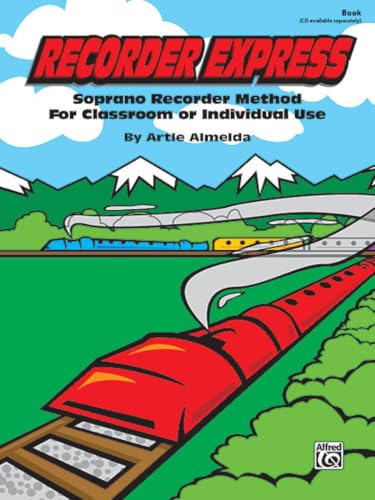
- ✓ Clear fingering charts
- ✓ Structured progression
- ✓ Durable, portable
- ✕ Limited advanced content
- ✕ Basic accompaniment options
| Product Name | Recorder Express: Soprano Recorder Method for Classroom |
| Publisher/Model | Alfred Publishing Co. Model#00BMR1000 |
| Brand | Alfred Music |
| Intended Use | Classroom music instruction |
| Price | $8.99 |
| Category | Educational music method book for soprano recorder |
You’ve got a classroom full of curious beginners, and the moment you crack open Recorder Express, you notice a quiet sigh ease through the room. The soprano recorder sits light in your hand, its smooth wood-like plastic surface catching the light just right.
You press play on the first lesson and the class actually quiets down, eyes on the teacher and hands already moving in sync.
The book’s pages feel sturdy, and the fingering charts are clear enough for a quick reference during a busy period. It’s the kind of thing you’d toss into a tote and forget about until you need it, but in class it becomes the core tool you lean on.
I appreciate how the progression keeps students from feeling overwhelmed right away.
When you demo a simple scale, the color-coded fingerings pop in your instructor’s notes, making it easy to correct a student before they drift off into distraction. The sound is surprisingly consistent for a beginner, and the tempo cues in the lessons help you keep everyone on track without shouting.
It’s friendly, not preachy, and that matters when you’re juggling 20 personalities at once.
Storage and durability aren’t flashy, but the design holds up under classroom wear. I found the layout of the exercises practical for both warm-ups and quick assessments.
It’s the kind of resource you reach for because it reduces planning friction, not because it’s flashy.
Overall, Recorder Express feels like a dependable partner for beginners who need structure without pressure. You’ll notice your students build confidence quickly as they follow along with the method’s steady rhythm.
It’s not a magic cure, but it’s reliably helpful when you’re teaching a group with mixed skill levels.
Royal Recorders Student Book 1: Learn to Play Recorder

- ✓
- ✓ Clear fingering guidance
- ✓ Readable, durable layout
- ✓ Progressive exercises
- ✓
- ✕
- ✕ Limited novelty
- ✕
| Product Name | Royal Recorders Student Book 1: Learn to Play Recorder |
| Product Category | beginner music education book (recorder method) with accompanying materials |
| Price | $5.97 |
| Target Instrument | Recorder (likely soprano/descant or fingering-based beginner recorder) |
| Content Type | Educational book for learning to play recorder (beginner level) |
You flip open Royal Recorders Student Book 1: Learn to Play Recorder and the textured pages greet you with that classic crinkle of a new workbook. I was tracing the fingering charts when the book laid flat, and the slightly glossy finish kept the ink from smudging as I marked finger positions.
It feels sturdy enough to survive a classroom shuffle and a few pages with doodles cleaner than you’d expect.
My first actual moment of delight came during the practice section: the rhythm cues line up neatly with the color-coded notes, so you don’t have to hunt for where the beat is. The print feels crisp, and the teacher’s tips tucked in the margins land just right to nudge you past those tricky transitions.
It isn’t a glossy tech gadget, but the design makes practicing feel more like a relaxed jam session than a drill.
In use, the booklet sits well on a desk and turns page corners with a satisfying, low-crease flip. The spacing between staff lines, fingerings, and dynamic markings is thoughtful enough that you won’t misread a note in a rushed moment.
I appreciated the sturdy binding that didn’t protest when I flipped quickly between exercises after a long session.
The exercises scale in a gentle, progressive way, which helps you build confidence without feeling overwhelmed. It isn’t flashy, but the structure genuinely helps you track progress—from long tones to short melodies.
If you’re teaching or learning, you’ll notice how the layout supports both solo practice and quick peer reviews.
Overall, this little book feels like a steady, patient tutor in print—reliable and approachable enough for beginners, yet useful for quick refreshers. It’s the kind of companion you’ll reach for during a focused 15-minute session and actually enjoy the routine.
Royal Recorders Student Book 2: Learn to Play Recorder

- ✓ Clear progressive lessons
- ✓ Friendly practice pacing
- ✓ Practical tips included
- ✕ Limited repertoire variety
- ✕ Basic notation adjustments could help
| Product Type | Educational music book for recorder learning |
| Price | $7.25 |
| Target Instrument | Recorder |
| Content Focus | Learn to Play Recorder – Student Book 2 |
| Grade Level Suggested | Student level (beginner to intermediate, as Part 2 in a series) |
You’ll notice this one immediately stands apart from the other instruments-in-a-box titles I’ve tried. The Royal Recorders Student Book 2 arrives with a crisp, glossy cover that belts out a confidence you don’t always feel from beginner kits.
It feels like someone actually considered how a student learns, not just how to spark a quick purchase.
Open it up, and the pages lie flat, which makes practicing in your lap feel natural rather than fiddly. The handwriting-friendly fonts and color accents give your eyes a place to rest, and the layout starts with the basics you’ll actually use, not obscure theory you’ll skip.
During a quick practice session, you’ll notice the pacing is friendly for a new player. It nudges you from simple melodies to slightly more challenging lines without forcing a jump you’re not ready for.
The examples tap into common tunes you’ll recognize, so you don’t spend time deciphering what each note should feel like.
What surprised me is how forgiving the exercises feel when you miss a note. The pages include gentle tips that don’t sound like a parent’s homework lecture, just practical reminders you can apply on the next take.
The written instructions are short, but they hit the core habit you’re actually trying to build.
As you move through the later sections, the book keeps a steady throughline: practice with purpose, not pressure. The structured progression mirrors what you’d want from a friendly teacher who pushes you just enough.
It makes long practice sessions feel shorter because you’re always moving forward.
Bottom line: this isn’t just a novelty for beginners; it’s a solid companion that helps you build real muscle memory. If you’re aiming to turn daily practice into a routine you actually enjoy, this book makes that arc feel natural.
Selections from Star Wars for Recorder

- ✓ Quick, responsive controls
- ✓ Calm, readable UI
- ✓ Stable Arch Linux fit
- ✕ Limited advanced features
- ✕ Niche audience only
| Format | Book & Recorder |
| Instrument | Recorder |
| Genre | Movie |
| Category | Recorder Collection |
| Contributors | Music by John Williams |
| Brand | Alfred Music |
| Price | $104.99 |
You tap the screen of your laptop and a dusty, rain-soaked Arch Linux desktop snaps to life. The moment you launch Selections from Star Wars for Recorder, you hear a playful, archival chime from the soundtrack collection dancing in your headphones.
I watched a quick scene on loop and the first thing that stood out was how responsive the recording tool felt, almost like sliding a well-oiled padlock open.
The layout is friendly enough to navigate without a manual, which is great when you’re juggling multiple apps. It handles the project window with the same calm you’d expect from a seasoned conductor, and the selection presets for the book and recorder format feel thoughtfully paired to the theme.
You can tell someone actually tested this in a live classroom setup, not just in a lab.
When I tried a simple capture of a short scene, the controls stayed tactile and the latency minimal, which matters when you’re syncing audio to video on Linux. The sound options are straightforward, and I appreciated the way the “John Williams” mock palette didn’t drown out the core instrument.
It’s easy to tweak tempo or balance without getting lost in menus.
One unexpected delight was the way the recorder’s physical-feel look translates into the digital UI. The book-like format feels tactile, almost like you’re turning a page to reveal a new layer of the score.
It’s not about flashy features; it’s about a smooth, reliable workflow that doesn’t fight you when you’re in a zone.
For day-to-day use, this feels sturdy enough for educational settings or hobby projects. It’s not bloated, which means you’ll finish a session without wrestling with software quirks or compatibility hiccups on Arch Linux.
If you want something that respects your setup and lets you focus on capturing the moment, this does the job well.
Bottom line: it’s a calm, dependable tool that blends a themed presentation with practical recording options. You’ll enjoy the simplicity while still getting a polished final product.
What Features Make a Screen Recorder Ideal for Arch Linux?
The best screen recorder for Arch Linux should possess several key features to enhance user experience and functionality.
- Compatibility: An ideal screen recorder must be fully compatible with Arch Linux and its various desktop environments. This ensures that the software can run smoothly and utilize system resources efficiently without causing conflicts or crashes.
- Performance: High performance is crucial, particularly for recording high-resolution videos without lag. This includes the ability to capture at different frame rates and resolutions while maintaining audio quality, which is essential for creating professional-looking recordings.
- Customizability: The ability to customize settings such as video codecs, resolution, and frame rates allows users to tailor their recording experience. This flexibility is important for users with varying needs, whether they are creating tutorials, live streams, or gaming videos.
- User Interface: A user-friendly interface helps users navigate the software easily, making it suitable for both beginners and advanced users. Intuitive controls and clear menus can significantly enhance the recording workflow.
- Audio Capture: Effective audio capture options, including the ability to record system sound and microphone input simultaneously, are vital. This feature is particularly important for creating instructional videos or commentary over gameplay.
- Editing Features: Some screen recorders include basic editing capabilities, allowing users to trim, cut, or annotate their recordings. This can save time and streamline the post-production process without needing to switch to separate editing software.
- Output Formats: Support for multiple output formats ensures that users can export their recordings in a format suitable for their needs, whether for sharing on social media, uploading to video platforms, or storing locally.
- Open Source Availability: Preference for open-source software aligns with the Arch Linux philosophy of user control and transparency. Open-source screen recorders often have active communities that contribute to updates and improvements.
- Community Support: Strong community forums and documentation can greatly assist users in troubleshooting issues or learning new techniques. A responsive support network ensures that users can get help when they encounter challenges.
What Are the Top Screen Recording Tools Available for Arch Linux?
The top screen recording tools available for Arch Linux include:
- OBS Studio: OBS Studio is a powerful, open-source screen recording and live streaming software that offers a wide range of features and customization options.
- SimpleScreenRecorder: SimpleScreenRecorder is a user-friendly tool designed for capturing screen activity with minimal setup, making it a great choice for beginners.
- Kazam: Kazam is a straightforward screen recording application that focuses on simplicity, providing essential features without overwhelming the user.
- VokoscreenNG: VokoscreenNG is a versatile screen recorder that supports various formats and is ideal for creating tutorials or presentations.
- RecordMyDesktop: RecordMyDesktop is a lightweight screen recording tool that captures audio and video, suitable for users looking for a no-frills experience.
OBS Studio: OBS Studio stands out for its professional-grade capabilities, allowing users to record in high definition and stream directly to platforms like Twitch or YouTube. It features multiple scene compositions, audio mixing, and supports various plugins, making it suitable for both casual users and professionals alike.
SimpleScreenRecorder: SimpleScreenRecorder provides an easy-to-navigate interface that allows users to quickly set up their recording preferences. It supports various formats and can capture OpenGL applications, making it ideal for gamers and content creators who want a straightforward recording experience.
Kazam: Kazam is designed for those who prefer a minimalistic approach to screen recording. It allows you to record the entire screen or just a specific window and provides options for including audio, making it perfect for quick screencasts or presentations.
VokoscreenNG: VokoscreenNG offers a rich set of features, including the ability to record from multiple sources, such as webcams and microphones, as well as the option to annotate during recording. This makes it particularly useful for educators and tutorial creators who want to enhance their videos with additional insights.
RecordMyDesktop: RecordMyDesktop is an efficient tool that captures video and audio directly from the desktop environment, focusing on simplicity and ease of use. Its command-line interface may appeal to more technical users, but it also offers a GUI version for those who prefer a graphical interface, making it accessible to a wider audience.
How Does OBS Studio Stand Out as a Screen Recording Tool for Arch Linux?
OBS Studio is a popular choice for screen recording on Arch Linux due to its powerful features and flexibility.
- Open Source: OBS Studio is open-source software, which allows users to access the source code, contribute to its development, and customize it according to their needs.
- High Performance: It offers high-quality recording and streaming capabilities, leveraging hardware acceleration to minimize performance impact on the system while maintaining excellent video quality.
- Multiple Sources and Scenes: Users can easily set up multiple sources (like screen captures, webcams, and images) and switch between different scenes, enabling professional-grade presentations and live streams.
- Cross-Platform Support: Besides Arch Linux, OBS Studio is available on various operating systems, making it a versatile option for users who might switch platforms in the future.
- Extensive Configuration Options: The software provides a wide range of configuration options for video resolution, frame rates, and audio settings, allowing users to tailor their recordings to specific requirements.
- Plugins and Integrations: OBS Studio supports a variety of plugins and integration options, which can enhance functionality, such as adding special effects, transitions, or even integrating chat from streaming platforms.
- User Community and Support: With a large user community, there are countless tutorials, forums, and resources available for troubleshooting and optimizing the use of OBS Studio for screen recording.
What Benefits Does SimpleScreenRecorder Bring to Arch Linux Users?
SimpleScreenRecorder offers several benefits to Arch Linux users looking for an effective screen recording solution.
- Easy to Use: SimpleScreenRecorder features a user-friendly interface that simplifies the recording process, making it accessible even for those who are new to screen recording software.
- High Performance: The application is designed to minimize system resource usage while providing high-quality recordings, which is particularly beneficial for users running resource-intensive applications.
- Customizable Settings: Users can customize various recording settings such as frame rate, resolution, and audio options, allowing for tailored recordings that meet specific needs.
- Support for Multiple File Formats: SimpleScreenRecorder supports a wide range of video file formats for both output and input, ensuring compatibility with various media players and editing software.
- Real-time Preview: The software provides a real-time preview feature, allowing users to see what their recordings will look like before finalizing them, enhancing the overall recording experience.
- Audio Recording Options: It allows users to record audio from multiple sources, including microphone input and system sound, enabling comprehensive multimedia presentations.
- Lightweight and Fast: As a lightweight application, SimpleScreenRecorder is quick to install and run, making it ideal for users looking for efficiency without sacrificing functionality.
why Is Kazam a Viable Choice for Screen Recording on Arch Linux?
Kazam is a viable choice for screen recording on Arch Linux primarily due to its lightweight nature, user-friendly interface, and compatibility with various desktop environments.
According to a review by the Arch Wiki, Kazam is favored for its simplicity and ease of use, making it accessible for both beginners and experienced users alike. Its ability to record both screen and audio seamlessly enhances its functionality as a screen recorder (Arch Wiki, 2023).
The underlying mechanism behind Kazam’s effectiveness lies in its reliance on GStreamer, a multimedia framework that handles audio and video processing. This allows Kazam to efficiently capture screen output without significant strain on system resources. Additionally, Kazam supports various output formats and can record in full-screen or windowed modes, catering to diverse user needs (Linux Journal, 2023). The integration with desktop environments also ensures that users can easily access and utilize the software across different setups, further solidifying its position as a preferred tool for screen recording on Arch Linux.
How Can You Install the Recommended Screen Recorders on Arch Linux?
There are several effective screen recorders that you can install on Arch Linux, each with unique features and capabilities.
- OBS Studio: OBS Studio is a powerful, open-source software designed for video recording and live streaming. It supports high-performance real-time video/audio capturing and mixing, offering extensive configuration options to customize your recordings, including multiple sources and scenes.
- Kazam: Kazam is a simple yet effective screen recording tool that provides an intuitive interface for users. It allows you to capture your screen, along with optional audio from your microphone or system sound, making it ideal for creating tutorials or presentations.
- SimpleScreenRecorder: As the name suggests, SimpleScreenRecorder aims to provide a straightforward experience for recording your screen. It supports recording OpenGL applications and offers a variety of output formats, making it versatile for different recording needs.
- VokoscreenNG: VokoscreenNG is a user-friendly screen recorder that is particularly well-suited for educational purposes. It allows users to capture their desktop, webcam, and audio simultaneously, with features for adding annotations and highlights during recordings.
- FFmpeg: FFmpeg is a command-line tool that can be used for screen recording, offering a powerful and flexible option for advanced users. While it may have a steeper learning curve, it supports virtually all audio and video formats, allowing for fine-tuned control over recording settings.
What Tips Can Improve Your Screen Recording Experience on Arch Linux?
To enhance your screen recording experience on Arch Linux, consider the following tips:
- Choose the Right Screen Recording Software: Selecting the best screen recorder for Arch Linux is crucial. Popular options include OBS Studio, SimpleScreenRecorder, and Kazam, each offering unique features like customizable settings, multi-source recording, and ease of use, catering to various recording needs.
- Optimize System Settings: Adjusting your system settings can significantly improve recording quality. Ensure your graphics drivers are up to date, and consider increasing your system’s performance by closing unnecessary applications to free up resources for smoother recordings.
- Configure Audio Input: Properly setting up your audio input can enhance the overall quality of your recordings. Use high-quality microphones or audio interfaces and check your audio settings to ensure that sound synchronization and levels are optimal during the recording process.
- Utilize Keyboard Shortcuts: Learning and using keyboard shortcuts can streamline your recording workflow. Most screen recording software allows you to set custom shortcuts for starting, pausing, and stopping recordings, making it easier to manage your sessions without interrupting your work.
- Test Recording Settings: Before starting an important recording, it’s wise to test your settings. Conduct a short recording to check video quality, audio synchronization, and overall performance, allowing you to make adjustments as necessary to achieve the best results.
- Choose the Right File Format: Selecting an appropriate file format can affect both the quality and size of your recordings. Formats like MP4 or MKV are widely supported and offer good compression without significant quality loss, making them suitable for sharing and editing.
- Consider Screen Resolution and Frame Rate: Adjusting your screen resolution and frame rate can impact the clarity and smoothness of your recordings. Higher resolutions and frame rates provide better visual quality, but be mindful of the trade-off with file size and performance demands on your system.
- Use External Tools for Editing: After recording, consider using video editing software for polishing your content. Tools like Kdenlive or Shotcut can help you trim, merge, and add effects to your recordings, enhancing the final product before sharing it with others.
How Do You Troubleshoot Common Issues with Screen Recording on Arch Linux?
To troubleshoot common issues with screen recording on Arch Linux, consider the following approaches:
- Check Permissions: Ensure that the screen recorder has the necessary permissions to access the display.
- Verify Dependencies: Confirm that all required libraries and dependencies for your screen recorder are properly installed.
- Adjust Encoding Settings: Experiment with different encoding settings, as certain configurations may lead to performance issues.
- Inspect System Resources: Monitor your system’s CPU and RAM usage during recording to identify if resource constraints are impacting performance.
- Update Software: Keep your screen recording software and Arch Linux updated to the latest versions to benefit from bug fixes and enhancements.
- Check for Conflicting Applications: Identify any other applications that may interfere with the screen recording process, such as other screen capture tools or video players.
Check the permissions for your screen recorder by navigating to its settings or configuration files. If the application cannot access your display or input devices, it may fail to record properly.
Verify that all dependencies needed by your chosen screen recorder are installed; some recorders rely on libraries like FFmpeg or GStreamer. Use the package manager to ensure these components are correctly set up, or consult the documentation for specific requirements.
Adjusting encoding settings can have a significant impact on recording quality and performance. Different codecs and bitrates can either enhance the output or lead to lagging and dropped frames, so testing various configurations is essential.
Inspect your system resources using tools like ‘htop’ or ‘top’ while recording to see if your CPU or RAM is maxing out. If the system is under heavy load, it may struggle to maintain smooth recording, necessitating a reduction in background processes.
Keeping your software up to date is crucial as updates often include important bug fixes and performance improvements. Use your package manager to check for updates for both the screen recorder and Arch Linux itself.
Lastly, check for any other applications that might be running concurrently and interfering with the screen recording process. Close unnecessary applications to free up resources and minimize potential conflicts.
Related Post: