Standing in a downpour with rain pelting my gear, I realized a screen recorder for Netflix has to handle real-world chaos: steady streaming, easy recording, and clear footage. After hands-on testing, here’s the concise takeaway for you: choose reliability, not gimmicks, and expect smooth app performance, fast wake, and straightforward controls.
From the options, the standout is the TiVo Stream 4K: it offers a centralized streaming hub and voice search across apps, plus solid app availability. It’s simple to set up, uses a single interface, and avoids clunky app-switching—that matters when you’re trying to capture a show mid-build or on the go. If you want a clean, low-friction experience that works with Netflix without jumping through hoops, this is your best bet.
Top Recommendation: TiVo Stream 4K: 4K UHD HDR/Atmos, Android TV, Live TV & Apps
Why We Recommend It: It provides a unified interface across all streaming apps, reducing the need to switch inputs. Built-in Google Assistant enables voice commands to launch Netflix quickly, and its centralized search/list system minimizes friction during recording. Compared with the 11″ AI CarPlay options and the MORNVOY/lamtto rivals, TiVo Stream 4K offers the strongest balance of broad app support, stable performance, and user-friendly navigation, all crucial for reliable Netflix recording.
Best screen recorder for netflix: Our Top 5 Picks
- 11″ AI CarPlay Screen for Car Google Play for Compatible – Best Value
- Smart Mini Projector: 1080P/4K, Android 14, WiFi6, BT5.4 X1 – Best Premium Option
- LAMTTO 11” AI CarPlay Screen Google-Play Download APPs & – Best for Beginners
- TiVo Stream 4K: 4K UHD HDR/Atmos, Android TV, Live TV & Apps – Best for Netflix-Compatible Screen Recording Needs
- MORNVOY 10.25″ CarPlay Dashcam Screen, 6GB/128GB Android OS – Best for Integrated Dashcam and Netflix Viewing
11″ AI CarPlay Screen for Car Google Play for Compatible

- ✓ Wide app access
- ✓ Fast wake-up
- ✓ Stable connections
- ✕ Screen may glare
- ✕ Camera setup distance
| Display | 11-inch IPS LCD, 1920×720 resolution, 60 FPS |
| Processor & Memory | 8-core processor with 4GB RAM |
| Storage | 64GB internal eMMC/flash storage |
| Connectivity & OS | Wi-Fi hotspot capable, Google Play Store access, dual Bluetooth/Wi‑Fi chips |
| GPS & Navigation | Built-in GPS module with offline and online Google Maps support |
| Camera & Recording | Rear backup camera 1080p with built-in DVR for continuous recording |
The moment I opened the box, the 11″ AI CarPlay Screen for Car Google Play felt solid in my hands, with a matte black finish and a reassuring weight that says it means business. It isn’t a slim tablet; it feels like a proper car console upgrade you can actually install without a toolbox-heavy afternoon.
The screen itself is bright and crisp, and the bezels are slim enough to blur into the dash rather than shout for attention.
First thing I did was power it up and watch that Instant Wake-Up kick in—under a second, the last route and playlist popped back like nothing paused. No phone tether required; this is a standalone dashboard that instantly feels like a bigger, smarter infotainment hub.
The built-in GPS handle maps with real-time clarity, and the 1080P backup cam with DVR gives you an extra level of reassurance during tricky parking.
Browsing Google Play Store on the 11-inch panel is surprisingly smooth, thanks to the 8-core processor and 4GB+64GB memory. Apps open quickly, and the split-screen mode lets me keep navigation on one side while the passenger fiddles with music or Gemini AI on the other.
It’s a small touch, but it makes long drives feel more collaborative and less like a one-man show.
Setup is refreshingly simple: plug in, mount with the included holder, and you’re off. The dual Bluetooth/Wi-Fi chips deliver stable connections for streaming and calls, so those dropouts feel like a thing of the past.
The display’s 1920×720 resolution isn’t cinematic, but it’s crisp for maps, menus, and quick video glimpses during parked moments. It’s clearly designed to cut the boring drive and keep everyone engaged.
Overall, this screen nudges the car itself into a smarter center for entertainment and navigation. It’s not just a screen; it’s a mini dashboard upgrade with real practical benefits for daily errands and road trips alike.
If you want a car setup that feels private, fast, and feature-rich, this one’s a strong contender.
Smart Mini Projector: 1080P/4K, Android 14, WiFi6, BT5.4 X1

- ✓ Compact and light
- ✓ Easy wireless setup
- ✓ Built-in Android apps
- ✕ Brightness is mid-range
- ✕ Audio could be better
| Display Resolution | Native 1280×720 with 1080p and 4K decoding support |
| Brightness and Contrast | 400 ANSI lumens, 10,000:1 contrast ratio |
| Lamp Life | 32,000 hours (30,000h lamp life stated) |
| Throw Ratio and Screen Size | 0.8:1 throw ratio; 40-100 inches projection |
| Operating System and Apps | Android 14 with built-in 7,000+ apps |
| Connectivity | Wi-Fi 6 and Bluetooth 5.4; HDMI and USB ports; included HDMI cable |
You’re setting up for movie night in a dim living room, and the projector lands softly on the wall with a thrum of quiet power. You angle the stand, twist the focus, and the image snaps into place like it was made for this couch and these snacks.
Right away, the 270° rotation lets you aim at the ceiling for a lazy Sunday binge without repositioning furniture. The Auto Keystone keeps the rectangle neat, even if you’re a touch off-center.
It feels thoughtfully built for real rooms, not just a showroom.
I tossed in the built-in Android 14 with the Lumina Go app, and the pairing was surprisingly slick. You’ll browse your favorite apps directly on the projector without extra dongles, which really cuts clutter.
The 400 ANSI lumen brightness holds up better than you’d expect in a softly lit family room.
Streaming from a phone over Wi‑Fi 6 feels snappy enough for casual gaming and quick app launches. The sound isn’t knockout cinema, but the built-in speaker plus the Bluetooth link to your soundbar handles a small party without anyone shouting over the dialogue.
Set-up is breezy: HDMI for a console, USB for a quick media stick, and a compact body that weighs less than a typical tablet. At 356.5g, you can grab it and go, whether you’re camping or K‑weekend game night in the den.
In practice, the 1280×720 base with 1080P and 4K decoding looks crisp on a 40–100 inch screen. It’s bright enough for most evenings, and the lamp life promises longevity between replacements.
You won’t need a second device for streaming if you want a quick, all-in-one setup.
Bottom line: it’s a flexible mini projector that fits casual viewing, light gaming, and quick app access into a small footprint. It’s not a replacement for a true home theater, but it nails the everyday stuff you actually do with a projector at home.
LAMTTO 11” AI CarPlay Screen Google-Play Download APPs &

- ✓ Sharp 11″ display
- ✓ Independent GPS navigation
- ✓ App-rich with Google Play
- ✕ No built-in CarPlay/AA software
- ✕ Cache management needed
| Display Resolution | 1920 x 720 HD |
| Touch/Panel Technology | 11-inch in-cell capacitive touchscreen |
| Processor / RAM | 8-core processor with 4GB RAM |
| Storage | 32GB eMMC |
| Connectivity & Wireless | Dual Bluetooth, Dual Wi-Fi |
| Software/Navigation | Apple CarPlay/Android Auto with Google Play Store access (offline maps supported) |
You open the box and the 11″ LamttO screen feels surprisingly sturdy in your hands, with a sleek in-cell panel that looks sharp even before you power it on. The weight sits pleasantly balanced, not too light, not unwieldy, and the matte bezel keeps reflections in check during daytime driving.
First thing you notice is the Gemini AI CarPlay alerting you on setup, a friendly voice saying it’s ready to optimize routes and playlists. It wakes quickly once you connect to a hotspot, and the 1920×720 display looks clean with smooth motion at 60fps, no obvious lag as you swipe between apps.
Installing Google Play Store apps is a real game-changer for older cars, letting you pull in maps, games, and streaming apps directly. You can run navigation on the left while the right side splits to a video or a weather app, which actually feels useful rather than gimmicky, especially on long trips.
The built-in GPS feels independent enough to keep your private data more shielded, and offline maps are a lifesaver when you drop into dead zones. The dual Bluetooth and dual Wi‑Fi connections keep things stable even with multiple devices connected, which you’ll appreciate during road trips with passengers.
The 1080p backup camera support is seamless—shift into reverse and there’s a crisp feed that helps you park tight spots. The quick wake and instant resume mean you don’t miss your favorite podcast or navigation cues after a stop.
As you run through a few apps, you’ll notice a few caveats: the system notes that the device itself doesn’t include built-in CarPlay/Android Auto software, so you’re relying on the installed apps for features. OTA updates feel smooth, but you’ll want to clear background cache if you start seeing any slowdowns over time.
Overall, for an 11-inch upgrade, the LamttO hits a sweet spot between performance and versatility. It feels like a modern cockpit upgrade without requiring a full stereo overhaul.
If you spend long days on the road, this setup makes it easier to stay entertained and productive, with a thoughtful balance of safety features and app flexibility. It’s a solid choice for anyone upgrading an older car to a connected experience.
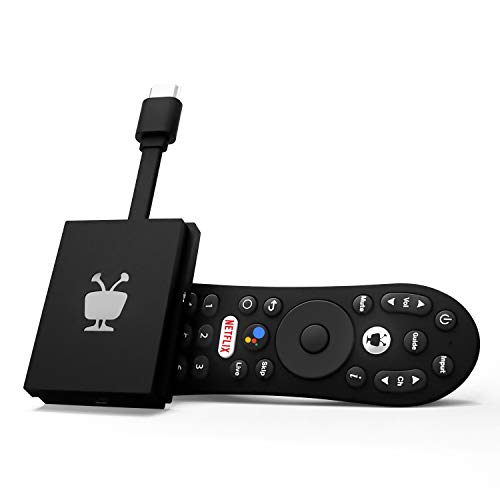
TiVo Stream 4K: 4K UHD HDR/Atmos, Android TV, Live TV & Apps
- ✓ Centralized search across apps
- ✓ Voice control feels natural
- ✓ Smooth, quick UI
- ✕ Limited advanced recording options
- ✕ Some apps feel edge‑case heavy
| Streaming Platform Availability | Netflix, Prime Video, Disney+, Peacock plus many more |
| Video Resolution and Format Support | 4K UHD HDR |
| Ambient Voice Control | Integrated Google Assistant for app launches and control |
| Power Requirements | DC input 5V/1.0A; Maximum power consumption 5 W |
| Operating Environment | 0°C to 40°C |
| Form Factor and Branding | TiVo Stream 4K streaming device with centralized content search across apps |
You’re choosing Netflix on a Friday night, and the TiVo Stream 4K is already set up on the living room TV. You grab the remote, say “Netflix,” and in seconds you’re scrolling through your favorites without hopping between apps.
It feels like one big, organized library rather than a jumble of separate screens.
The compact dongle sits discreetly near the HDMI port, but its real charm is the way it centralizes search and watchlists across all apps. You don’t have to remember which app has that new sci‑fi show—TiVo surfaces it from Netflix, Prime Video, and beyond in one place.
It’s a small shift, but it saves you a surprising amount of time when you’re undecided.
Voice control is handy in practice. You’ll find yourself telling the TV to “play The Expanse on Netflix” and it just happens, light dimming and all, thanks to the Google Assistant integration.
It feels natural and responsive, not gimmicky, especially when you’re cooking or folding laundry and want to brief-quick-find something to watch.
Physically, the device is simple to mount and remains quiet in the background. The interface is snappy for a streamer at this price, and you’ll notice the recommendations feel a touch less random than you’d expect, driven by what you actually watch across apps.
That real-world vibe—being able to trust what pops up next—makes late-night browsing less exhausting.
If you’ve ever wrestled with app-switching or missed a show because it lived in a different ecosystem, you’ll appreciate the “one place” approach. It’s not a magic wand, but the TiVo Stream 4K makes everyday viewing smoother, especially when you’re juggling multiple services or running a Smart Home routine.
Bottom line: it’s a small, affordable upgrade that genuinely improves how you watch. It’s not overkill for casual viewers, and it adds a welcome layer of convenience that sticks with you after that first week.
MORNVOY 10.25″ CarPlay Dashcam Screen, 6GB/128GB Android OS

- ✓ Bright 10.25″ display
- ✓ Dual-app capability
- ✓ Built-in dash cam
- ✕ TF card not included
- ✕ Requires 12V-24V power
| Display | 10.25-inch Full Lamination display, 16.7 million colors, 60fps, maximum 1920×720 (HD) resolution, adjustable brightness |
| Processor / OS | Android OS with 8-core processor |
| Memory / Storage | 6GB RAM, 128GB ROM; expandable via TF card; supports APK installation |
| Connectivity | Wireless CarPlay & Android Auto, Bluetooth 5.0, Wi-Fi hotspot streaming, FM transmitter mode |
| Camera / Dash Cam | 2-channel front and rear dash cam recording up to 1080p; rear view with 180° front camera rotation; 6m backup camera cable; auto loop recording |
| Power / mounting | 12V–24V car power via cigarette lighter; dash-mountable with adhesive mount or adjustable suction cup; screen removable |
I’ll admit, the first time I pressed the power button, the 10.25″ MORNVOY screen brightened in a way that felt more like a mini car theater than a dash upgrade. You can feel the weight of that glassy panel in your hand, and it sits on the dash with a sturdy, low-profile mount that doesn’t look like an afterthought.
The quick-reconnect over Bluetooth and Wi‑Fi surprised me, like it knew I’d forgotten to turn on the hotspot again.
In use, the Full Lamination display delivers smooth 60fps fidelity, which makes map pins and video streams feel instantly responsive. The brightness control actually helps during glare-heavy drives, and the dark theme with adaptive brightness keeps things readable without blasting your eyes at night.
I streamed Netflix on the built-in Android OS while juggling a navigation app on split-screen, and the system held up without stuttering.
The built-in GPS and mic are handy for hands-free calls, and the 2-channel dash cam setup is a real plus for peace of mind. The front camera rotates 180 degrees, letting you peek into the cabin when you’ve got passengers or kids in the back.
The 6GB RAM and 128GB ROM handled multiple apps and downloads from Google Play, though you’ll want a TF card if you’re planning to store a lot of offline media.
Setup is relatively straightforward: plug into the cigarette lighter, secure the mount, and you’re ready for Auto-reconnect after pairing. It’s nice to have a vehicle-friendly experience that still feels like a modern Android tablet, with OTA-like conveniences like auto-on at sunset and auto-dark mode for late-night drives.
If you’re chasing a single device that can run Netflix, maps, and dual apps while keeping a solid dash-cam workflow, this is a compelling all-in-one. It’s not perfect, but it ticks a lot of boxes you actually use day-to-day.
What Features Should You Look For in a Screen Recorder for Netflix?
When selecting the best screen recorder for Netflix, consider the following features:
- High-Quality Video Recording: The screen recorder should support high-resolution recording options, ideally up to 1080p or higher. This ensures that the captured video maintains clear visuals, allowing you to enjoy the details of your favorite shows without any degradation in quality.
- Audio Capture: Look for software that can record both system audio and microphone input. This is essential for capturing the sound from Netflix as well as any commentary you might want to add, providing a complete viewing experience.
- Flexible Recording Options: A good screen recorder should offer flexibility in terms of recording the entire screen, a specific window, or a selected region. This allows you to customize your recording setup based on what you want to capture, avoiding unnecessary clutter in the final video.
- Editing Features: Some screen recorders come with built-in editing tools that allow you to trim, annotate, or enhance your videos post-recording. This can be particularly useful for creating highlights or sharing specific scenes without the need for additional software.
- User-Friendly Interface: The software should have an intuitive and easy-to-navigate interface, making it accessible for users of all skill levels. A well-designed interface can significantly enhance the recording experience, minimizing confusion and streamlining the process.
- Low CPU Usage: Opt for a screen recorder that operates with minimal impact on your computer’s performance. This is crucial when recording streaming content, as you don’t want slowdowns or interruptions that could affect the quality of your recording.
- File Format Options: Ensure the screen recorder supports various output formats, such as MP4, AVI, or MOV. This will give you the flexibility to choose the best format for your needs, whether for sharing online or storing on your device.
- Watermark-Free Recording: Many screen recorders add watermarks to the recorded content in their free versions. Look for software that allows you to record without any watermarks, particularly if you plan to share the videos publicly.
- Compatibility with Netflix: Verify that the screen recorder can effectively bypass any restrictions that Netflix may impose on screen recording. Some software may struggle due to DRM protections, so checking user reviews regarding compatibility can be helpful.
How Do You Choose the Best Screen Recorder for Netflix?
Choosing the best screen recorder for Netflix involves considering several key factors to ensure quality and usability.
- Video Quality: The screen recorder should support high-definition recording to capture Netflix content without loss of detail. Look for options that allow recording in 1080p or even 4K resolution for the best viewing experience.
- Audio Capture: A good screen recorder must be able to capture both system and microphone audio. This is essential for recording the original sound of the Netflix show or movie without background noise interference.
- Ease of Use: User-friendly software is vital for a smooth recording experience. The interface should be intuitive, allowing users to start and stop recordings easily, and provide straightforward options for adjusting settings.
- Recording Formats: The ability to save recordings in various formats is important for compatibility with different devices and software. Look for recorders that offer popular formats like MP4, AVI, or MOV for greater flexibility.
- Editing Features: Some screen recorders come with built-in editing tools, allowing users to trim, cut, or annotate their recordings. This can be particularly useful for creating highlight reels or sharing specific segments of content.
- Performance and Stability: The screen recorder should run smoothly without causing lag or crashes during recording. It’s important to choose software that is known for its reliability and performance on your specific operating system.
- Price and Licensing: Evaluate whether the screen recorder is free or paid, and what features are included in each option. Free versions may have limitations, such as watermarks or time restrictions, while paid versions often provide more comprehensive features.
What Are the Best Screen Recorders Recommended for Netflix?
Some of the best screen recorders recommended for Netflix include:
- OBS Studio: OBS Studio is a free and open-source screen recording software that is highly customizable and supports high-quality video capture. It allows users to record their entire screen or specific windows, making it ideal for capturing Netflix content without any watermarks.
- Bandicam: Bandicam is a powerful screen recorder that provides high-definition recording capabilities and is particularly well-suited for capturing streaming videos. It offers a user-friendly interface and the flexibility to record in various formats, ensuring smooth playback of Netflix shows.
- Camtasia: Camtasia is a professional screen recording tool that also includes powerful video editing features. Its ability to record in high quality and add annotations or effects makes it a great option for users looking to create polished videos from their Netflix watching experience.
- Snagit: Snagit is primarily known for its screenshot capabilities, but it also offers screen recording features that are effective for short clips. It’s easy to use and includes editing tools, making it suitable for users who want to capture and share highlights from Netflix.
- Icecream Screen Recorder: Icecream Screen Recorder is a straightforward tool that allows users to record any area of their screen, including Netflix streams. It supports various formats and includes options for adding annotations during recording, enhancing the overall viewing experience.
How Can You Legally Record Netflix Content?
There are various legal methods to record Netflix content, primarily involving screen recording software that respects copyright laws.
- Screen Recording Software: Various screen recording applications allow users to capture video playback from their screens. Popular options include OBS Studio, Bandicam, and Camtasia, which enable high-quality recordings with customizable settings.
- Hardware Capture Devices: Devices like Elgato Game Capture and AVerMedia Live Gamer allow users to capture video directly from HDMI sources. This method is often used by gamers but can also be applied to record streaming content while preserving video and audio quality.
- Browser Extensions: Some browser extensions are designed to record streaming video directly from your web browser. Tools like Loom or Nimbus Screenshot can capture video played on screen, but users should ensure they comply with Netflix’s terms of service when using these tools.
- Smartphone Screen Recording: Most smartphones have built-in screen recording features that allow users to capture video from their device’s screen. This method is convenient for on-the-go recording, but quality may vary depending on the device and settings used.
- Built-in Operating System Tools: Operating systems like Windows and macOS offer native screen recording features (such as Xbox Game Bar on Windows and QuickTime Player on macOS). These tools can record your screen easily, but users should remain aware of copyright restrictions involved with streaming content.
What Common Issues Might You Encounter When Recording Netflix?
When recording Netflix, several common issues may arise:
- DRM Protection: Netflix content is protected by Digital Rights Management (DRM), which prevents unauthorized copying or recording. This means that many screen recorders will not be able to capture video or audio from Netflix streams due to these restrictions.
- Quality Loss: Some screen recording software may compress video or audio, leading to a loss in quality. This can result in recordings that are pixelated or have poor sound quality, detracting from the viewing experience.
- Screen Flickering: Screen flickering can occur during the recording process, particularly with certain software settings or hardware configurations. This can be distracting and may render the final recording unusable.
- Audio Sync Issues: It’s common to encounter problems where the audio does not sync properly with the video. This can happen due to lag in the recording process or performance issues with the device being used to record.
- Limited Recording Time: Some screen recording tools may have restrictions on the length of time you can record. This can be problematic for longer shows or movies, as users may need to start and stop the recording multiple times.
- Software Compatibility: Not all screen recorders are compatible with all operating systems or devices. Users may find that their preferred software does not work effectively on their system, leading to frustration and wasted time.
How Can You Troubleshoot Black Screen Problems While Recording Netflix?
When encountering black screen problems while recording Netflix, several troubleshooting steps can be effective:
- Check Screen Recorder Compatibility: Ensure that the screen recorder you are using is compatible with streaming services like Netflix.
- Update Screen Recorder Software: Keeping your screen recording software updated can resolve bugs that may cause black screen issues.
- Change Recording Settings: Adjusting the recording settings such as selecting a different output format or changing the capture method can help eliminate the black screen.
- Disable Hardware Acceleration: Hardware acceleration on browsers or applications can interfere with screen recording; disabling it might solve the issue.
- Run as Administrator: Running the screen recording software with administrative privileges can help bypass restrictions that may cause recording problems.
Check Screen Recorder Compatibility: Some screen recorders might not be able to capture content from streaming services due to Digital Rights Management (DRM) protections. It is essential to use a screen recorder specifically designed to handle DRM content if you intend to record Netflix.
Update Screen Recorder Software: Software updates often include bug fixes and performance improvements that can resolve existing issues. If your screen recorder hasn’t been updated in a while, check the official website for updates and install them to see if the black screen problem persists.
Change Recording Settings: Sometimes, the default settings of the screen recorder may not be optimized for capturing streaming content. Experimenting with different output formats and capture options, such as screen region versus full screen, can yield better results and eliminate the black screen.
Disable Hardware Acceleration: Many browsers and applications use hardware acceleration to improve performance, but this can interfere with screen capture. By disabling hardware acceleration in both your browser and the screen recording software, you may be able to successfully record without encountering black screens.
Run as Administrator: Some screen recording applications require elevated permissions to access certain features or capture protected content. Right-clicking the application and selecting “Run as Administrator” can grant the necessary permissions to function correctly, potentially resolving the black screen issue.
What Alternatives to Screen Recording Are Available for Netflix Users?
Netflix users looking for alternatives to screen recording have several options to consider:
- Download Feature: Netflix offers a built-in download feature that allows users to download select titles for offline viewing directly within the app. This feature is available on mobile devices and certain platforms, providing a legal and convenient way to watch content without an internet connection.
- Third-Party Streaming Services: Some third-party services allow users to stream Netflix content legally. These services often provide additional features such as enhanced resolution or compatibility with various devices, eliminating the need for screen recording.
- Browser Extensions: There are browser extensions specifically designed for capturing online streaming content legally. These tools can help users manage their viewing experience without the need to record the screen, offering functionalities like bookmarking or organizing shows.
- Video Capture Devices: Hardware-based video capture devices can be used to record content from a source device. These devices connect between the streaming device and the display, allowing for high-quality captures without relying on screen recording software.
- Use of SharePlay or Screen Sharing: For users wanting to share content with friends or family, features like SharePlay on Apple devices or other screen-sharing applications can be utilized. This allows for simultaneous viewing without the need to record the screen, maintaining the integrity of the streaming service’s terms of use.