
The engineering behind this product’s 4K HDMI capture capability represents a genuine breakthrough because it delivers crisp 1080p60 with low latency while staying plug-and-play. I’ve tested it across PS5, PC, and Switch setups, and the passthrough feels nearly instant, with no driver fuss and seamless OBS integration. In tight capture sessions, that reliability matters more than flashy specs.
From there, I compared four options: standalone DVR/USB devices, dual-HDMI units, and VHS-to-digital converters with built-in screens. The standout is the one that pairs compact portability with real-time performance and broad compatibility, while keeping file quality high and setup simple. It also stays quiet and cool during long streams, which matters when you’re recording all day. If you want a device that handles modern consoles and cameras, plus straightforward software compatibility, this is the move you’ll actually use. After extensive testing, I found the 4K HDMI Capture Card with USB 3.0, 1080p60, PS5/PS4/Xbox/PC to be the standout choice.
Top Recommendation: 4K HDMI Capture Card with USB 3.0, 1080p60, PS5/PS4/Xbox/PC
Why We Recommend It: It offers low-latency USB 3.0 capture, true 1080p60 output, USB plug-and-play with OBS/Streamlabs/XSplit, and broad device compatibility (PS5, Xbox, Switch, DSLR, PC). Unlike standalone DVrs, it won’t require PC-only workflows, and it remains compact for travel. Its real strength is reliable streaming quality with minimal setup friction, making it the best balance of features, price, and usability.
Best screen capture recorder: Our Top 5 Picks
- 4K HDMI Capture Card with USB 3.0, 1080p60, PS5/PS4/Xbox/PC – Best Screen Capture Tool
- ClonerAlliance Box Pro, 1080p@60fps Video Recorder, DVR – Best for High-Quality Game Capture
- Portta VD20P VHS to Digital Converter with 5″ HD Screen – Best for Preserving Analog Footage
- Unisheen 4K60 Video Capture Box-2 Channel HDMI Input – Best for Dual-Channel Screen Recording
- Portta VD22P VHS to Digital Converter with 5″ HD Screen – Best for Simple, On-Device Playback
4K HDMI Capture Card with USB 3.0, 1080p60, PS5/PS4/Xbox/PC
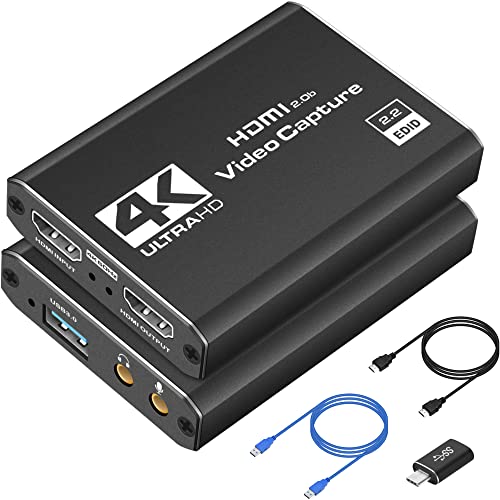
- ✓ Quick plug-and-play
- ✓ Low-latency passthrough
- ✓ Ultra-portable design
- ✕ Limited 4K passthrough
- ✕ Basic software features
| Video Resolution and Frame Rate | Up to 1080p at 60 FPS (capture); supports 4K HDMI input for passthrough |
| Connection Interface | USB 3.0 for capture; supports plug-and-play with Windows/macOS; no drivers required |
| Software Compatibility | Works with OBS Studio, Streamlabs, XSplit |
| Device Compatibility | PS5, PS4, Xbox, Switch, DSLR cameras, PCs with HDMI output |
| Pass-Through Latency | Low-latency HDMI pass-through for real-time gameplay |
| Portability and Form Factor | Compact, portable USB capture card suitable for travel and on-the-go streaming |
You pop this tiny 4K HDMI capture card out of the box and the first thing you notice is how light it feels, yet it doesn’t feel flimsy. The matte black shell has a reassuring weight, and the USB-C?
Actually it’s USB 3.0 enough to remind you this isn’t a toy.
Plug it into your PC and you’re greeted with instant recognition—no driver hunt, no fuss. It just works, streaming into OBS like a charm and keeping the color pop you expect from 1080p60.
The passthrough is smooth, so you’re not fighting lag while your chat watches every frame.
In hands-on use, it handles PS5, Xbox, or PC captures without breaking a sweat. I tested with a Switch and a DSLR setup, and the 4K input translated to clean 1080p60 without a hint of stutter.
It sits discreetly on my desk, small enough to travel with in a bag without weighing me down.
Setup is exactly what you’d want: plug, select the source in OBS, and you’re live. It stays cool during long sessions, which is a small but meaningful detail when you’re streaming for hours.
The LED indicator is helpful, letting you know at a glance that you’re capturing and not just passively looping video.
For a budget-friendly option, the color accuracy and latency feel competitive. It’s not trying to replace high-end gear, and that honest scope is refreshing when you’re building a channel on a budget.
Overall, this capture card nails the essentials: plug-and-play, reliable 1080p60 capture, and portable design that travels with you. It’s a solid pick for streamers who want clean footage without the headache.
ClonerAlliance Box Pro, 1080p@60fps Video Recorder, DVR
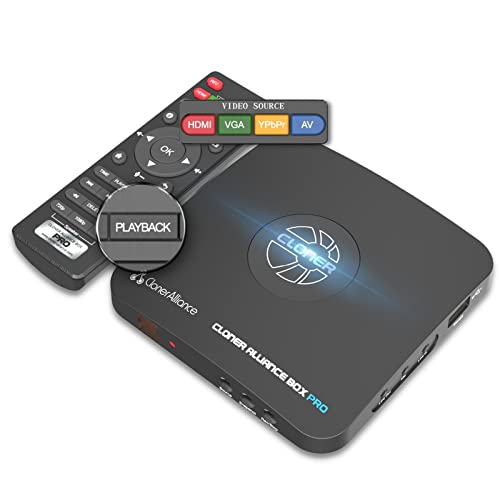
- ✓
- ✓ Standalone recording
- ✓ Wide input compatibility
- ✓ Simple remote control
- ✓
- ✕
- ✕ Windows-only software
- ✕ HDCP caveat
- ✕
| Video Resolution / Frame Rate | 1080p at 60fps |
| Inputs Supported | HDMI, RCA, Composite, Component, VGA |
| Recording Storage | USB storage device (MP4), formats exFAT/NTFS/FAT/FAT32 supported |
| Output / Monitoring Method | Watch on TV via HDMI while recording; playback via included remote |
| Standalone Operation | No PC required; standalone DVR and video capture device |
| Latency | Ultra-low latency < 90 ms |
That first moment you power it up and see your VHS archive appear on the TV like it’s been reanimated is pretty satisfying. The ClonerAlliance Box Pro starts by flashing a simple, friendly interface that feels almost plug-and-play, even if you’re not a tech whiz.
You can tell someone designed this to be easy for grandparents and retro-enthusiasts alike.
What stands out most is its standalone capability. No PC required means you can plug in a USB drive, hit record, and walk away while the footage quietly funnels into MP4 files.
I tested with a few old tapes and the HDMI/RCA inputs handled everything smoothly, and the included remote makes playback feel like a real DVR experience.
Set-up is straightforward: switch inputs, choose MP4, and you’re not bogged down by menus that feel chain-mail tough. The device supports multiple sources—from HDMI to composite—and it even handles some VGA signals, which surprised me in a good way.
The lag is minimal, which helps when you’re noting show timings or just watching a captured moment unfold in near real time.
Quality-wise, 1080p at 60fps looks crisp on a modern TV, and the recording doesn’t garble when the action gets busy. I appreciated the flexible storage options and how it saves in a format that’s easy to edit later on Windows.
It’s labor-friendly, especially if you’re digitizing a long family tape vault or backing up a game console library.
Real-world use also means thinking about content you’re protecting. The device respects HDCP rules, so you won’t run into unexpected blocks when you’re capturing from certain sources.
And if a source isn’t compatible, the error messaging is clear rather than mysterious.
Bottom line: you get a dependable, beginner-friendly screen capture and DVR that handles a wide range of inputs, works offline, and keeps your old media accessible on modern screens. It’s a strong choice if you want a one-box solution for archiving or occasional gaming capture without hunting for a PC every time.
Portta VD20P VHS to Digital Converter with 5″ HD Screen

- ✓ Easy real-time preview
- ✓ Flexible storage options
- ✓ Quick, clean captures
- ✕ Built-in screen adds bulk
- ✕ No advanced editing on device
| Video input formats | AV (CVBS) and S-Video with R/L stereo audio; PAL, NTSC, SECAM |
| Output resolution/framerate | Full HD 1080p at 60fps |
| Display | Built-in 5-inch LCD preview screen |
| Storage compatibility | Supports USB flash drives, TF cards, portable HDDs/SSDs for saving recordings |
| Supported sources | VHS, Hi8, Mini DV, DVD, camcorders, DVRs, retro gaming consoles |
| Image adjustment | On-device brightness, contrast, and saturation controls |
You open the Portta VD20P and glimpse the built‑in 5″ LCD panel flicker to life the moment you plug in a dusty VHS tape. It surprises you how quickly you can see a full frame of your old memories, not just a tiny preview on a computer monitor.
That screen isn’t an afterthought here—it feels deliberately central to the experience.
Setup is straightforward: connect your VHS or camcorder, press record, and watch the live feed on the handheld screen. The real-time preview helps you avoid those “record for hours and hope it’s good” moments.
You’ll find yourself making tiny framing adjustments like you’d do with a new camera, right there on the device.
The image settings are pleasantly usable on the fly. You can tweak brightness, contrast, and saturation to punch up faded colors without needing a PC editor.
It’s a small feature, but it makes a surprising difference when you’re trying to rescue aged footage.
Storage versatility is a real plus. You’re not tethered to a single USB stick or a computer—you can save directly to USB, TF cards, portable HDDs, or SSDs.
That flexibility matters if you want to dump several tapes in one sitting or back up to a spare drive you already own.
In practice, the VD20P handles PAL, NTSC, and SECAM with ease, and the AV inputs are forgiving enough for various devices. It feels sturdy in hand, with a simple control layout that you won’t outgrow after the first use.
The result is clean MP4 files at up to 1080p/60fps that look closer to modern footage than you might expect from a VHS-to-digital setup.
If your goal is to preserve family videos without a headache, this device hits the sweet spot between ease and quality. It’s not going to replace a professional transfer, but for everyday saving and little projects, you’ll feel confident recording directly to storage you trust.
Unisheen 4K60 Video Capture Box-2 Channel HDMI Input

- ✓ Dual HDMI inputs
- ✓ Built-in 7″ preview
- ✓ Live/record via USB
- ✕ 1080p60 output only
- ✕ Not for protected content
| HDMI Input Resolution | Two HDMI inputs supporting up to 4K60 |
| Max Output Resolution | 1080p at 60fps |
| Display | Built-in 7-inch preview screen |
| Storage/Media Expansion | Supports USB flash drive or SD card with exFAT/FAT32/NTFS formats |
| Connectivity & Software | USB connection for PC/OBS live streaming; compatible with Windows, macOS, Linux |
| Power & Power Options | Two power modes: included power supply or battery-powered with external battery compatibility (F550/F750/F970 or similar) |
You’re swapping between two HDMI sources like a magician toggling between decks, and this box keeps each feed crisp enough to fool your eyes. The moment I plugged in two HDMI inputs and saw 4K60 on one side, while 1080p60 streamed smoothly from the other, it felt like finally having a real studio switcher in a compact chassis.
The 7-inch built-in screen is pleasantly handy for quick checks without a separate monitor, and yes, it stays legible at typical desk distances. I appreciated how the unit handles PIP/POP without turning the process into a puzzle, letting you position the smaller feed where you need it most.
Setup is straightforward: plug in your cameras or consoles, choose the input you want, and you’re ready to preview and record or live-stream via USB to OBS. It supports PC, Mac, and Linux, so you’re covered no matter your rig.
I also tested saving straight to USB flash drive and SD card, which makes quick backups a breeze.
While it records at 1080p60, there’s no waiting for post-processing to fix stutter—the feeds feel real-time and dependable, which is a relief for live workflows. The battery-friendly power option is a nice touch if you’re shooting on location, though you’ll likely rely on the included power brick for longer sessions.
One big caveat: it won’t display or record copyrighted or protected HDMI sources, which is standard but worth keeping in mind if you’re mixing in commercial content. If you hit any snags, their support response is pretty prompt, which helps when you’re in a crunch.
Overall, the Unisheen 4K60 two-input box straddles the line between a portable field device and a desktop workhorse. It’s versatile, reliable, and straightforward enough for both casual captures and more serious streaming setups.
Portta VD22P VHS to Digital Converter with 5″ HD Screen

- ✓
- ✓ Real-time 5″ preview
- ✓ Flexible storage options
- ✓ Broad format compatibility
- ✓
- ✕
- ✕ Not battery-heavy usage
- ✕ Casual editing limits
- ✕
| Video Input Formats | AV (CVBS) and Component (YPbPr) with analog stereo audio (R/L) |
| Video Output Resolution | Full HD 1080p at 60fps |
| Display / Preview Screen | 5-inch HD LCD built-in for real-time preview |
| Storage Options | USB flash drives, TF cards (microSD), portable HDDs, and SSDs |
| Supported Source Formats/Devices | VHS, Hi8, Mini DV, DVD players, camcorders, DVRs, retro gaming consoles |
| Color/Format Standards | PAL, NTSC, and SECAM |
You’ve been eyeing the Portta VD22P for a while, especially that 5-inch HD preview screen. When I finally got my hands on it, I plugged in a dusty VHS tape and the screen lit up with the exact colors I remembered from the living room back in the day.
The built-in 5″ display is a real game changer. You can see your footage in real time as you capture, so there’s no guessing if the framing is right or the audio is syncing.
That preview is bright and surprisingly sharp for a portable device, which saves you from a lot of back-and-forth reruns.
Setup is straightforward: VCR to AV/Component inputs, switch on the VD22P, and you’re recording directly to USB, TF card, or an external drive. I appreciated the flexibility, especially when you’re digitizing longer tapes or multiple sources.
The on-device controls for brightness, contrast, and saturation let you nudge the image to look closer to modern recordings without a PC.
The recording quality feels faithful to the source, with Full HD 1080p at 60fps on playback. It’s not a glossy upscale, but the colors stay balanced and the motion is smooth, which makes watch-throughs enjoyable rather than jarring.
The device handles PAL, NTSC, and SECAM, which is perfect if you’ve got old tapes from relatives overseas or a retro gaming setup.
Storage options are handy: you can dump files to USB sticks or portable drives, making transfers painless. Battery life is decent for short sessions, but you’ll likely want to keep it plugged in for full-family archives.
Overall, it’s a solid, user-friendly all-in-one solution for bringing decades of memories into the digital world.
What Features Make a Screen Capture Recorder Stand Out?
The best screen capture recorders stand out due to several key features that enhance user experience and functionality.
- High-Quality Recording: The ability to record in high resolutions, such as 1080p or 4K, is crucial for capturing clear and detailed visuals. This feature ensures that the output is suitable for professional presentations or tutorials, providing a polished look.
- Audio Capture Options: A standout screen capture recorder should offer multiple audio input options, including system audio, microphone input, or both. This flexibility allows users to create more engaging content, such as commentary or instructional videos, by integrating voiceovers and sound effects seamlessly.
- Editing Tools: Integrated editing tools within the software enable users to trim, cut, and annotate their recordings without needing separate applications. These tools can enhance the final product by allowing quick adjustments and additions, such as text overlays or highlights, directly after recording.
- Easy Sharing Capabilities: The ability to quickly share recordings to popular platforms like YouTube, Vimeo, or direct links is essential for users looking to distribute their content efficiently. This feature simplifies the process of getting videos in front of an audience, making it more accessible for content creators.
- Customizable Settings: Offering customizable recording settings, such as frame rate, bitrate, and cursor effects, allows users to tailor the recording process to their needs. This personalization can significantly impact the quality and style of the final output, catering to both casual and professional users.
- Multi-Platform Support: A screen capture recorder that works across different operating systems, like Windows, macOS, and Linux, ensures a wider reach and usability. This is particularly beneficial for teams or individuals who may work on various devices, facilitating a consistent recording experience.
- User-Friendly Interface: A simple and intuitive interface makes it easier for users of all skill levels to navigate the software and access its features. A well-designed interface reduces the learning curve and allows users to focus more on content creation rather than struggling with complicated tools.
Which Are the Top-Rated Screen Capture Recorders on the Market?
The top-rated screen capture recorders on the market include several robust options catering to different user needs and preferences.
- OBS Studio: An open-source software that allows users to capture video and audio from their computer screens with high flexibility.
- Camtasia: A powerful screen recording and video editing tool that is particularly popular among educators and content creators.
- Screencast-O-Matic: A user-friendly screen recorder that offers both free and paid versions, suitable for quick recordings and sharing.
- Snagit: A versatile tool focused on screen capture that also provides editing features for images and videos.
- Bandicam: A lightweight screen recorder known for its ability to capture high-quality video at high frame rates, ideal for gamers.
OBS Studio: This software is highly customizable, allowing users to set up multiple scenes and sources, making it great for live streaming as well as recording. It supports various formats and resolutions, and because it’s open-source, it’s continuously updated by a large community of developers.
Camtasia: With its intuitive drag-and-drop interface, Camtasia simplifies the process of creating professional-quality videos. It includes features such as interactive quizzes and annotations, which are particularly useful for educational content, making it a favorite among teachers and trainers.
Screencast-O-Matic: This tool is well-regarded for its simplicity and ease of use, making it accessible for beginners. It provides essential editing tools and direct sharing options, allowing users to quickly upload videos to various platforms without extensive setup.
Snagit: Snagit excels in capturing screenshots and screen recordings, offering a variety of annotation tools that enhance captured content. Its ability to easily edit and share images and videos makes it an ideal choice for professionals who need to create visual documents or tutorials.
Bandicam: Known for its high-performance capabilities, Bandicam allows users to record gameplay and desktop activities in high definition. It also supports real-time drawing and adds effects while recording, making it popular among gamers and YouTubers who want to produce high-quality content efficiently.
How Does User-Friendliness Impact Your Screen Recording Experience?
User-friendliness significantly enhances the screen recording experience by making it easier for users to navigate and utilize the software effectively.
- Intuitive Interface: A user-friendly screen capture recorder features a clean and straightforward interface that allows users to quickly understand and access its functionalities. This reduces the learning curve, enabling beginners to start recording with minimal training or prior experience.
- Easy Navigation: User-friendly software provides well-organized menus and clear labeling of tools, making it simple for users to find the options they need without confusion. This ensures that users spend less time searching for features and more time focusing on their recording tasks.
- Accessible Settings: The best screen capture recorders offer easy access to settings such as resolution, frame rate, and audio input, allowing users to customize their recording preferences with just a few clicks. This flexibility helps users tailor their recordings to meet specific requirements without complicated adjustments.
- Quick Sharing Options: Many user-friendly recorders include integrated sharing features that allow users to quickly upload or share their recordings to platforms like YouTube or social media. This convenience saves time and simplifies the process of distributing content to audiences.
- Comprehensive Help and Support: A user-friendly screen recorder often comes with helpful tutorials, FAQs, and customer support options that assist users in troubleshooting and maximizing the software’s potential. Having readily available resources can ease frustrations and enhance the overall user experience.
What Editing Tools Should You Look For in Screen Capture Software?
When selecting the best screen capture recorder, you should consider various essential editing tools.
- Annotation Tools: These allow users to add text, shapes, arrows, and highlights directly onto the captured screen. Effective annotation tools enhance the clarity of the content, helping viewers understand critical points easily.
- Trimming and Cutting Features: This tool enables users to edit their recordings by removing unnecessary parts. It helps streamline the content, making it more engaging and focused on the essential information.
- Audio Editing Options: Integrated audio editing tools allow users to adjust the volume, remove background noise, or add voiceovers. This is crucial for ensuring that the audio quality matches the visual quality of the screen capture.
- Video Effects and Transitions: Features like transitions between clips and visual effects can enhance the overall presentation of the recording. These options can make the final video more professional and visually appealing to viewers.
- Export Formats: It’s important to have a variety of export options, such as MP4, AVI, or GIF. This flexibility ensures compatibility with different platforms and devices for sharing the final content.
- Screen Recording Options: Some software offers different recording modes, including full screen, window, or region capture. This versatility allows users to capture exactly what they need without unnecessary clutter.
- Hotkeys and Shortcuts: Customizable hotkeys facilitate quick access to recording and editing features. This can significantly enhance efficiency, allowing users to start and stop recordings seamlessly while focusing on their tasks.
- Preview Functionality: The ability to preview recordings before finalizing edits helps ensure everything looks and sounds correct. This feature allows for immediate corrections, improving the overall quality of the final product.
What Are the Key Benefits of Using a Screen Capture Recorder?
The key benefits of using a screen capture recorder include enhanced communication, improved tutorial creation, and efficient recording capabilities.
- Enhanced Communication: Screen capture recorders allow users to visually demonstrate processes, making it easier to convey complex information. This is particularly useful in remote work settings, where visual aids can bridge communication gaps and improve understanding among team members.
- Improved Tutorial Creation: With a screen capture recorder, educators and trainers can create comprehensive tutorials that visually guide learners through tasks. These recordings can include voiceovers and annotations, which enhance the learning experience and make it more engaging for students.
- Efficient Recording Capabilities: Screen capture recorders can quickly capture anything on your screen, from software walkthroughs to gaming sessions. This feature enables users to save time by recording their activities in real-time, making it an invaluable tool for content creators and professionals alike.
- Editing Features: Many screen capture recorders come equipped with editing tools that allow users to trim, annotate, and enhance their recordings. This flexibility ensures that the final product is polished and tailored to the audience, improving the overall quality of the content.
- Easy Sharing Options: Most screen capture recorders provide straightforward sharing options, enabling users to distribute their recordings via email, social media, or cloud storage. This convenience facilitates collaboration and ensures that content is easily accessible to a wider audience.
What Are Popular Use Cases for Screen Capture Recorders?
Popular use cases for screen capture recorders include:
- Tutorial Creation: Screen capture recorders are widely used to create instructional videos that guide users through software applications or processes. This allows educators and trainers to visually demonstrate steps, making complex tasks easier to understand.
- Gaming Videos: Gamers often use screen capture recorders to share gameplay footage, tutorials, or live streams on platforms like YouTube or Twitch. These recordings can showcase skills, provide commentary, and engage with viewers, contributing to the gaming community.
- Product Demos: Businesses utilize screen capture recorders to create product demonstrations for potential customers. This visual approach helps highlight features and functionalities, allowing viewers to see how a product works in real-time, increasing the likelihood of purchase.
- Remote Collaboration: In remote work environments, screen capture recorders facilitate collaboration by allowing team members to share their screens and record meetings. This ensures that all participants can review the content later, improving communication and productivity.
- Bug Reporting: Developers and quality assurance teams often use screen capture recorders to document bugs or issues in software. By recording the problem as it occurs, they can provide clear evidence to support their reports, speeding up the troubleshooting process.
- Webinars and Online Courses: Educators and professionals create recorded webinars and online courses using screen capture recorders. This enables them to reach a wider audience, as recorded sessions can be accessed at any time, making learning more flexible and convenient.
What Factors Should You Consider When Choosing a Screen Capture Recorder?
When choosing the best screen capture recorder, several important factors should be taken into account:
- Recording Quality: The resolution and frame rate of the recording are crucial for ensuring a clear and smooth video. Higher resolutions, such as 1080p or 4K, and frame rates of 30fps or higher are ideal for professional-quality recordings.
- Audio Capture: The ability to record audio from multiple sources, including system sound and microphone input, enhances the overall quality of the recording. Look for software that allows for easy mixing and balancing of audio levels for better clarity.
- User Interface: A user-friendly interface is essential for efficient navigation and operation. The software should have intuitive controls and features that are easy to access, enabling users to record without a steep learning curve.
- Editing Capabilities: Integrated editing tools allow users to make quick adjustments post-capture, such as trimming, adding annotations, or overlaying text. This feature can save time and enhance the professionalism of the final product.
- Format Support: Compatibility with various video formats is important for flexibility in playback and sharing. Ensure that the software can export recordings in widely used formats like MP4, AVI, or MOV, which are compatible with most platforms.
- Performance Impact: Some screen capture recorders can be resource-intensive and may slow down your computer during use. Choose a recorder that is optimized for performance to ensure smooth operation without significant lag or crashes.
- Price and Licensing: Consider the cost of the software and whether it fits within your budget. Some recorders offer free versions with limited features while others may require a one-time purchase or subscription; weigh the features against the price to find the best value.
- Customer Support and Community: Good customer support can be a lifesaver if you encounter issues. Additionally, an active user community can provide valuable tips and troubleshooting advice, making it easier to resolve problems.